 TreiD
TreiD
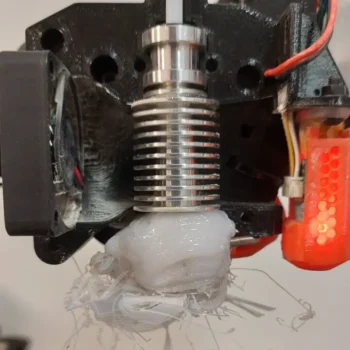
Most failed prints trace back to three causes, so the fastest 3D printing problems solutions start with three checks, in this order: the Z-offset, wet filament, then extruder steps or flow. I check the Z-offset first because one small print tests it: a single-layer square, nudged in 0.02 mm steps until the lines just merge.
Then dry the spool if the nozzle hisses or pops, and command 100 mm of extrusion to confirm the extruder pulls exactly 100 mm. Every other failure below is sorted by symptom, with one test and one first change each.
3D Printing Problems Solutions: The 5-Minute Triage Before You Change a Setting
Before changing a slicer value, run a few physical checks. They come before the three calibration checks above, because a bad spool, a snag in the filament path or a greasy plate can spoil any of those results. If one fails, fix it and reprint before you read further.
Start with the filament. Confirm the material and its temperature range on the spool label, and check it was stored sealed with desiccant. Measure the diameter in three spots with calipers; if the readings wander, enter the measured average in the slicer or replace the spool. Then spin the spool by hand: it should turn freely, with nothing snagging the path to the extruder.
Next, the hardware. Confirm the nozzle size in the slicer matches the one fitted, check that the Bowden couplers or the direct-drive tension hold the filament without slipping, and tension the belts. If the nozzle is partly blocked, MatterHackers’ troubleshooting guide recommends a nylon cold pull or clearing it with a small needle.
Re-run leveling or the mesh instead of assuming it’s fine, check the Z-offset with a first-layer test print, and wipe the plate with isopropyl alcohol. Close doors and keep the printer away from air vents, since moving air cools one side of the part faster than the other.
Last, a slicer sanity check: set the filament diameter to what you measured, and leave line width, layer height and flow at the profile defaults until you calibrate.
How to Diagnose Any Failed Print: Symptom, Likely Cause, One Test, One Change
Each section below follows the same pattern: name the symptom, rank the likely causes, run one test, make one change, then lock the fix in. Change one thing, re-test, and commit only when the improvement repeats. Read the failure before you scrape it off: note where it broke, which layer it started on and whether it repeats.
Find your symptom in the table, run the one test, then make the first change. The section in brackets has the full fix.
| Symptom | One test | First change |
|---|---|---|
| Round, separate first-layer lines | Single-layer square | Z-offset down 0.02 mm at a time (first layer) |
| Corners lift after a good first layer | Watch the first layers | Enclosure or draft shield (warping) |
| Gaps, thin walls | 100 mm extrusion test | E-steps or a cold pull (under extrusion) |
| Blobs, walls too thick | Profile check, then flow cube | Lower flow multiplier (over extrusion) |
| Hairlike strings | Retraction tower | Retraction only (stringing) |
| Snaps along layer lines | Flex a small block | Hotter nozzle, less fan (layer adhesion) |
| Holes the wrong size | Cube plus hole coupon | Hole compensation by the measured error (fit) |
| Part offset from one layer up | Belts and grub screws | Tighten, lower acceleration (layer shifts) |
| Echoes after sharp features | Two acceleration values | Input shaping (surface finish) |
| Scar where layers start | Check seam placement | Seam to rear (surface finish) |
| Drooping overhangs, sagging bridges | Overhang test print | More part cooling (surface finish) |
| Bumps or gaps in the top surface | Check top layer count | More top layers (surface finish) |
Failures in the First Few Layers: First Layer, Bed Adhesion and Warping
Uneven squish, gaps between lines, lines that don’t touch and elephant’s foot all point at the first layer. Sort those out before you touch anything else.
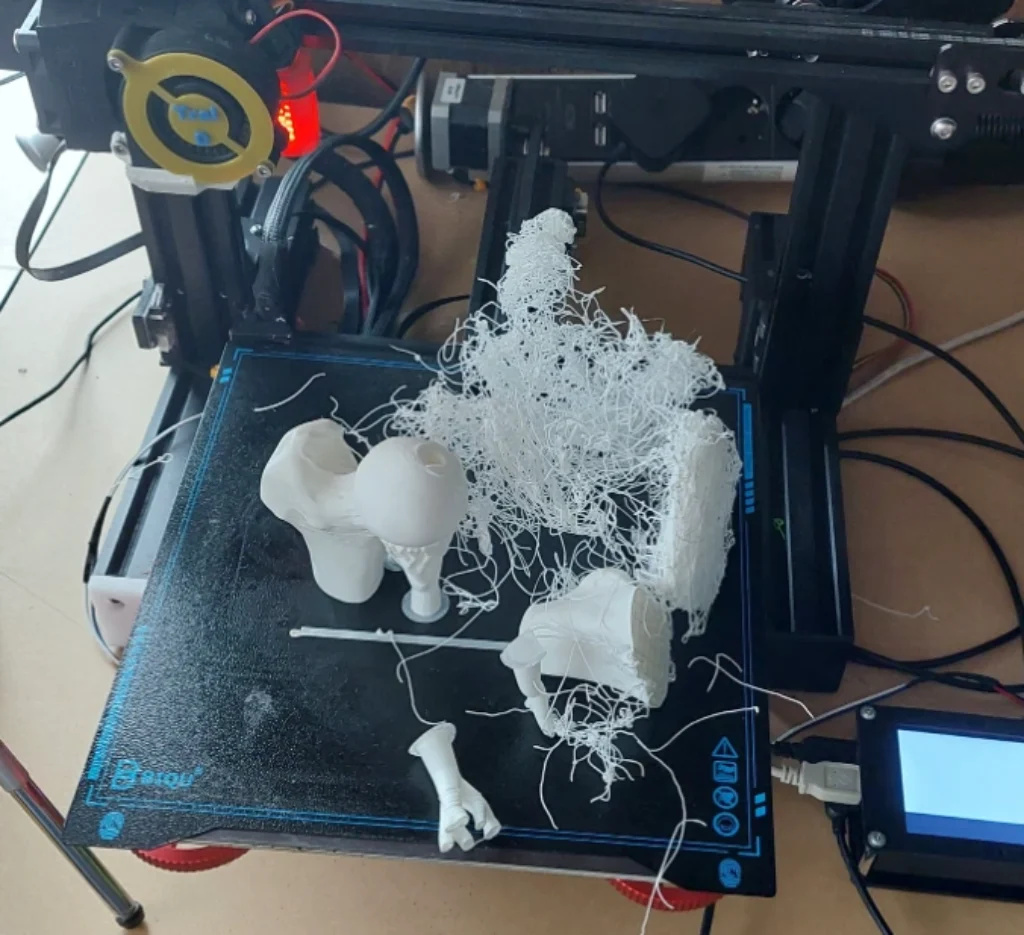
Check the Z-offset first. Print a single-layer square: round, separate lines mean the nozzle is too high, while ridges or a rough, scraped surface mean it’s too low. Move the Z-offset in 0.02 mm steps until the square looks right, and only then touch anything else.
If the lines still don’t stick, slow the first layer down, which MatterHackers lists as a fix for poor bed adhesion. Keep first-layer extrusion at 100% or less: the same guide ties elephant’s foot to first-layer extrusion above 100%, as well as to a first layer set too low. Leave the part-cooling fan off at the start, too: Prusa’s cooling guide says many filaments print better with no cooling for the first few layers, typically 1–5.
Match the plate to the filament. Prusa’s PETG guide recommends a textured, powder-coated sheet for PETG, because it can bond hard enough to damage smooth PEI; if you must use smooth PEI, apply a glue stick first. Adhesives such as Magigoo come in grades per material, with separate ones for PLA, PETG and ABS, for nylon and for polycarbonate. Magigoo’s instructions for the Original grade are to reapply it for long or difficult prints, and before every print on flex sheets.
If the first layer looks right but the part still lets go mid-print, check the bed temperature range on the filament label, and let the plate preheat fully. Only once the temperature is right does a brim, mouse ears at sharp corners, or a raft earn its place by adding contact area.
Warping comes from a thermal gradient: the upper layers cool and shrink while the bed holds the bottom warm, so the edges pull up and the corners lift. Watch the first layers: if corners lift after a good first layer, you have warping, not a Z-offset problem. The first change is to stop the air moving, with an enclosure or at least a slicer draft shield and a closed door.
For ABS, Prusa’s ABS guide gives a bed range of 80–110 °C, with larger objects needing the top of it, and calls for an enclosure or a draft shield. Prusa also notes that ASA warps less than ABS and that PETG has very little thermal expansion, so a material switch can be the fix for large, flat parts. In CAD, fillets on sharp corners remove the points where lifting starts.
Too Much or Too Little Plastic: Under Extrusion, Over Extrusion and Stringing
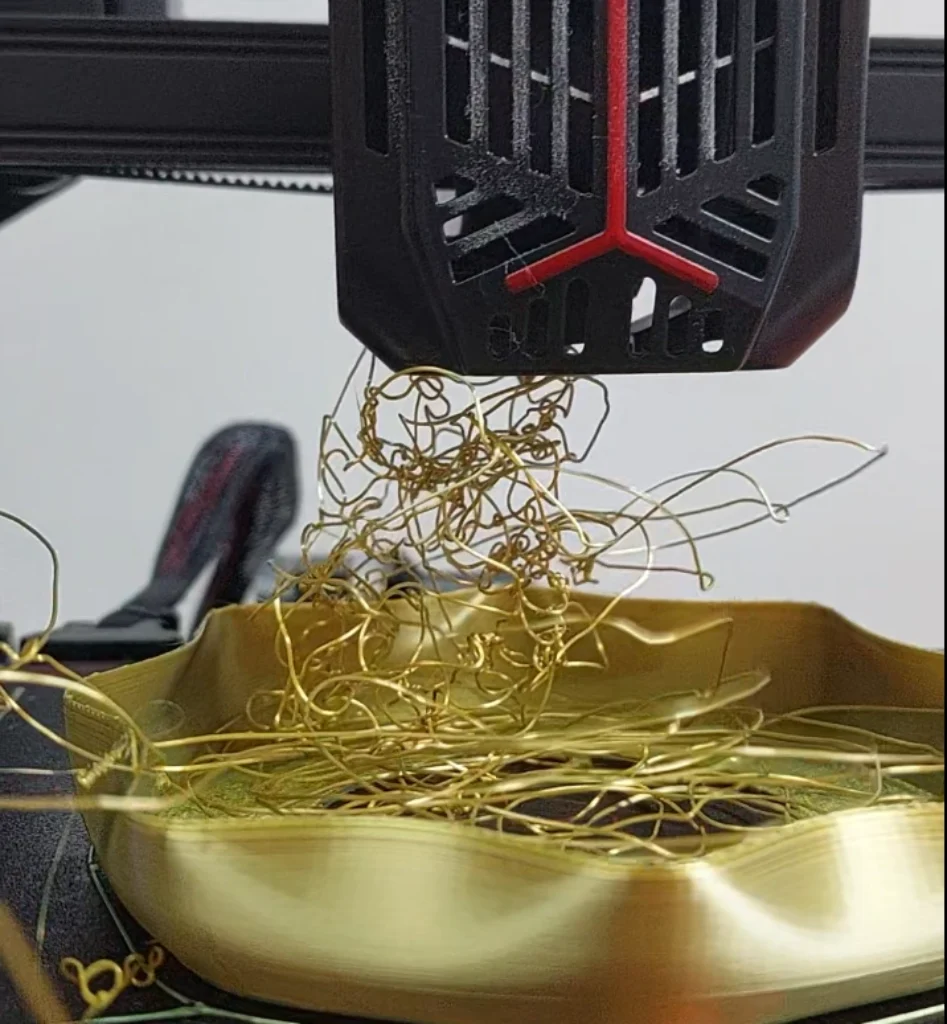
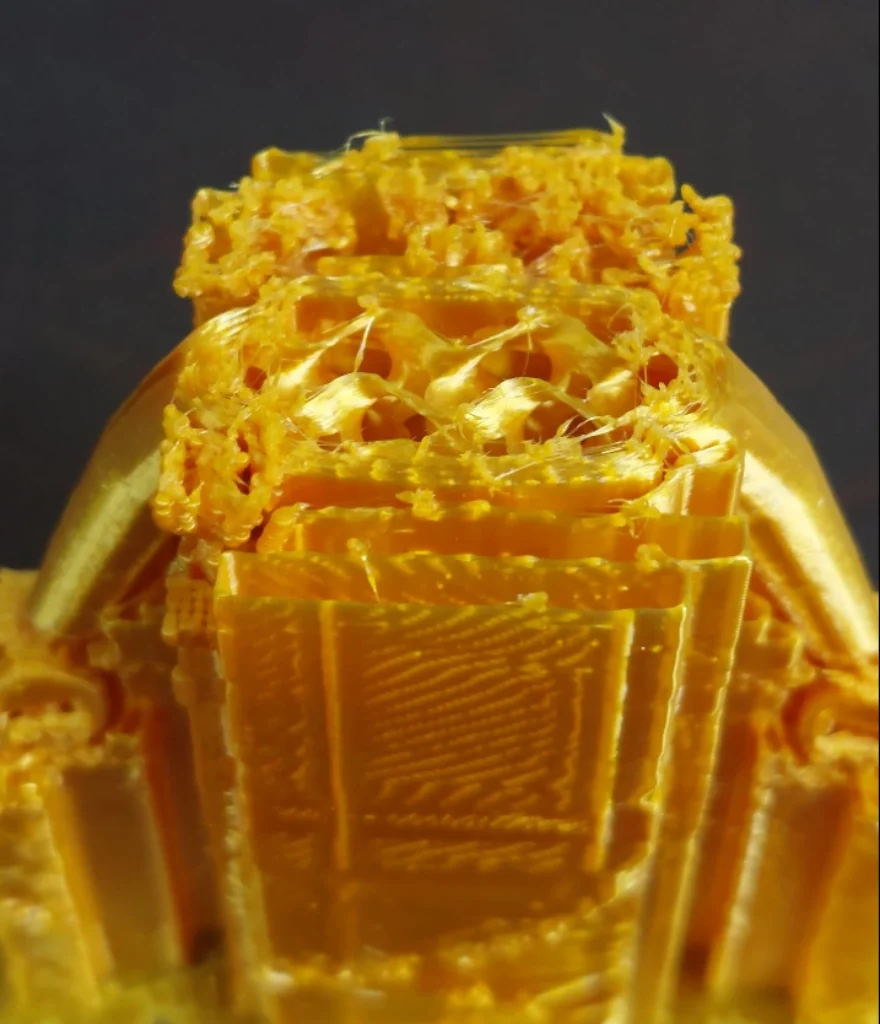
Gaps, thin walls and missing layers mean the nozzle isn’t getting enough plastic. MatterHackers lists three usual causes: the wrong filament size in the printer settings, an extrusion temperature that’s too low, and a clogged or uncalibrated nozzle or extruder.
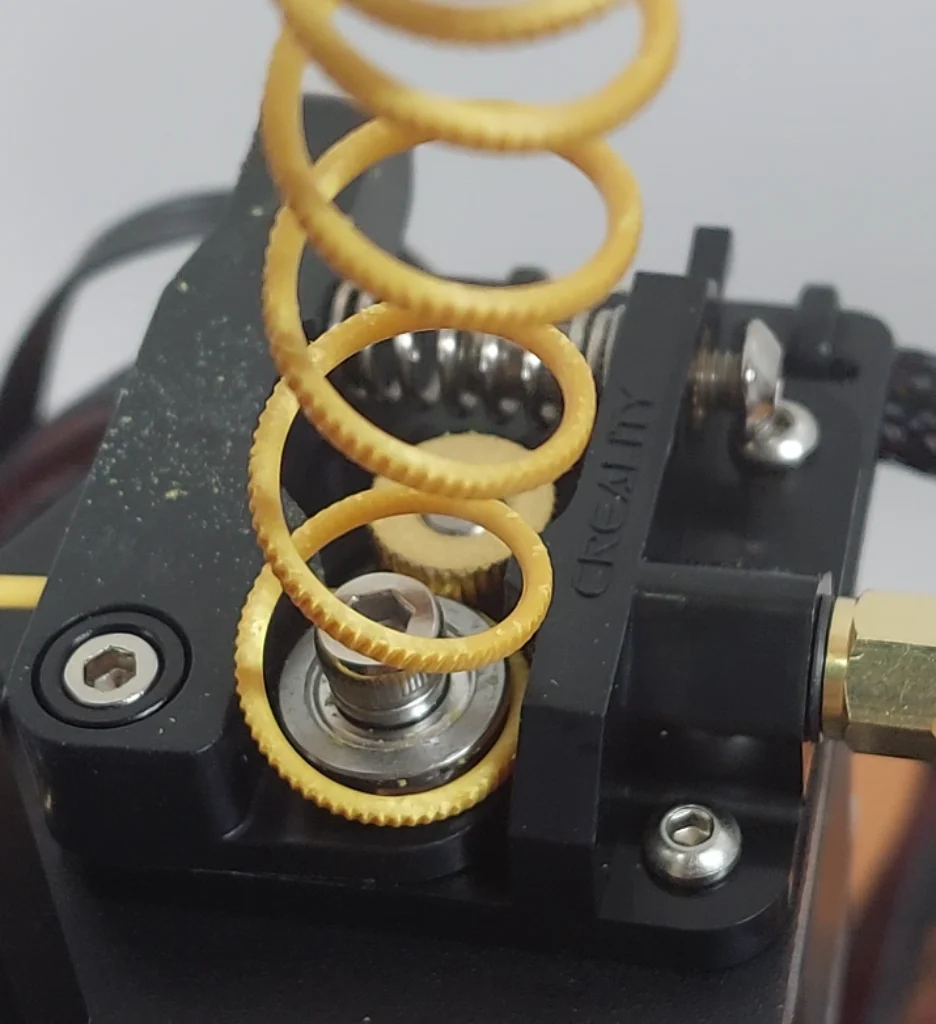
To test for under extrusion, heat the hotend to printing temperature and mark the filament 120 mm above the extruder entry. Command 100 mm of extrusion, then measure from the entry to the mark: you should have 20 mm left. More than 20 mm means the extruder is slipping or miscalibrated. Exactly 20 mm with gaps still in the print points at the nozzle, the temperature or the speed.
A short pull means calibrate E-steps (rotation distance on Klipper) with our extruder calibration guide, then fine-tune flow. A full pull with gaps points to a partial clog, so do a cold pull or swap the nozzle before raising temperature or cutting speed.
Clogs and heat creep. If extrusion stops mid-print or the extruder starts clicking, heat the hotend to printing temperature and push filament through by hand. If it won’t flow under firm pressure, the first fix is a cold pull. If it clears but jams again partway through prints, suspect heat creep: check that the heatsink fan spins whenever the hotend is hot, and that the PTFE tube is fully seated with no gap.
Over Extrusion: Blobs, Zits and Walls Too Thick
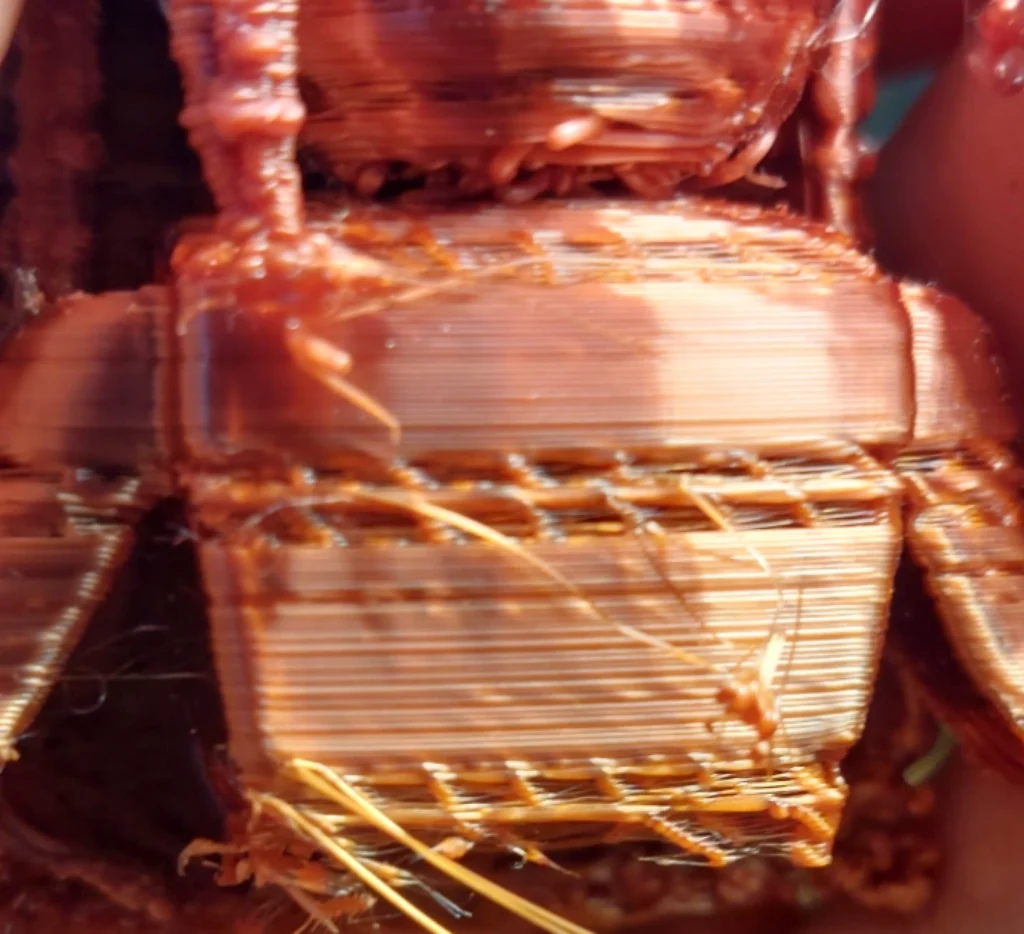
Blobs, zits and walls that measure too thick mean too much plastic. Often the cause is a wrong number in the profile, so the first test needs no printing: open the profile and check flow, filament diameter and line width before anything else.
If the profile is clean, print a single-wall flow cube, measure the wall at 3–4 points with calipers and average the readings. The new multiplier is current multiplier × (target wall width ÷ measured wall width): at 1.00 with a 0.45 mm target and a 0.47 mm average, that gives 0.96. Closed printers that don’t expose E-steps leave this slicer flow calibration as the whole job.
Pressure advance (linear advance in Marlin) tames blobs at corners and line ends, and elephant’s foot compensation handles the squished bottom. Save the calibrated flow in each filament profile, so the fix survives the next spool change.
Stringing: Retraction, Temperature and Travel
Hairlike strands between features are stringing. The big levers are retraction, temperature and travel, and wet filament makes all three worse. If you hear hissing or popping from the nozzle, dry the spool before you touch retraction.
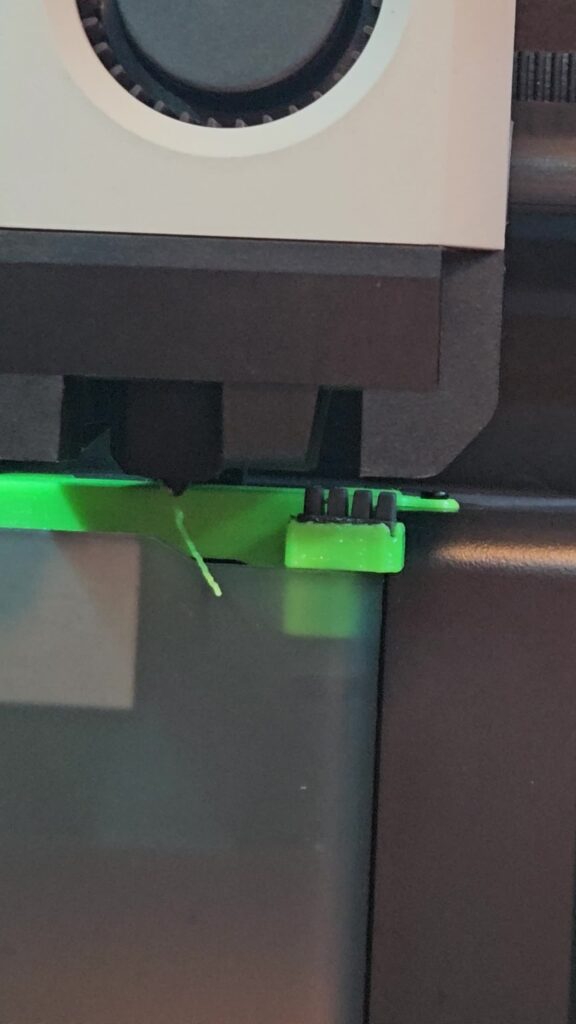
The test is a retraction tower, and our Retraction 101 setup walks through it. Simplify3D’s stringing guide puts most direct-drive extruders at 0.5–2.0 mm of retraction, says some Bowden setups need as much as 15 mm, and finds retraction speed usually works best between 20 and 100 mm/s. Run the tower inside that window and change retraction first, nothing else.
If strings survive, lower the nozzle temperature: NinjaTek’s troubleshooting guide suggests 5 °C steps, and Simplify3D 5–10 degrees. Then raise travel speed so the nozzle spends less time over open air, enable combing or avoid crossing perimeters, and add wipe and coast. A worn or crusted nozzle oozes too, so clean or replace it if the strings never fully stop.
Parts That Split or Snap: Fixing Layer Adhesion
If layers split, or a part snaps cleanly along a layer line when you bend it, the layers never fused. A quick test is to print a small block and flex it.
The first change is heat. Raise the nozzle in 5 °C steps, staying inside the spool’s range, because each new layer has to remelt the top of the one below it to bond. If that’s not enough, reduce or turn off the fan for ABS and nylon; for PETG, Prusa runs the fan off for the first few layers and at half power after, or fully off for the toughest parts. Wet filament also weakens layers, so dry it before you chase temperature any further.
If the outer wall peels away from the inner ones, NinjaTek’s fix is to slow the outer wall to about the bottom-layer speed, then raise flow 5% at a time.
If the layers are fused but the part is still too weak, add walls before anything else: Prusa’s layers and perimeters guide says a model’s strength comes mostly from its perimeters, not its infill. For infill, gyroid is a good default, since Prusa’s infill patterns guide describes it as equally strong in all directions and fairly quick to print. A part is always weakest across its layer lines, so orient it so the load runs along them. For high-temperature materials, an enclosure keeps the layer below warm enough to bond.
Annealing is the last lever, and it only suits some materials. In Prusa’s annealing tests, PLA was strongest after annealing at 90 °C and above, PETG improved above 110 °C, and ABS and ASA were classed as unsuitable. Expect the part to change size: the samples shrank most along their longest axis and grew in Z.
Parts That Don’t Fit: Dimensional Accuracy, Shrinkage and Hole Compensation
The test is a calibration cube plus a coupon with the hole sizes you actually use, measured in X, Y and Z with calipers; our 3D printer resolution guide explains why those numbers matter. If an axis is off by the same percentage at every size, so the error grows with the part, check steps per mm (rotation distance on Klipper) and that the pulley and belt pitch match the firmware.
A slack belt causes backlash instead, which shows up as a roughly fixed offset or rounded, uneven corners, so tension the belts when you see that. If outer walls come out oversize by a fixed amount regardless of part size, check flow and line width.
Material shrinkage also scales with the part: Prusa puts ABS shrinkage at usually around 1–2%, so a large ABS part can measure small on a well-calibrated printer. Scale the model for that material instead of changing steps per mm.
The hole coupon catches the most common misfit: holes that come out the wrong size while the cube measures true. The first change is hole compensation in the slicer, set from the coupon: measure the hole and compensate by the difference.
Two PLA studies show why one fixed number works. In an Atlantis Press study of hole shrinkage in PLA, 10 mm holes printed 0.20–0.50 mm undersize, layer thickness moved the error most of the four settings tested, and 0.36 mm of compensation brought one to 9.96 mm. In an ASEE study of 3D-printed PLA accuracy on a MakerBot and a Prusa, holes came out 0.5–0.9 mm oversize, mostly as a fixed offset, and modelling them 0.9 mm smaller cut the error to 0.007–0.128 mm.
The two studies erred in opposite directions, which is why the coupon comes before the setting. Holes shrink as the plastic cools, and a study of FDM hole shrinkage compensation corrects it through the part’s interior structure instead of plain scaling.
A clearance parameter on every hole means one edit updates the whole model instead of a slicer tweak per print; the method is covered in parametric design in Fusion 360.
Layer Shifts: Belts, Pulleys and Collisions
If the whole part steps sideways at one layer and carries on offset, that’s a layer shift, not a calibration error. Check belt tension, the grub screws on the motor pulleys, and whether the nozzle hit curled-up plastic at that height. A pulley that slips now and then leaves walls that wander back and forth instead of one clean step. The first fix is to tighten the loose belt or pulley; if nothing is loose, lower acceleration.
Prints That Work but Look Rough: Ringing, Z-Seams and Surface Finish
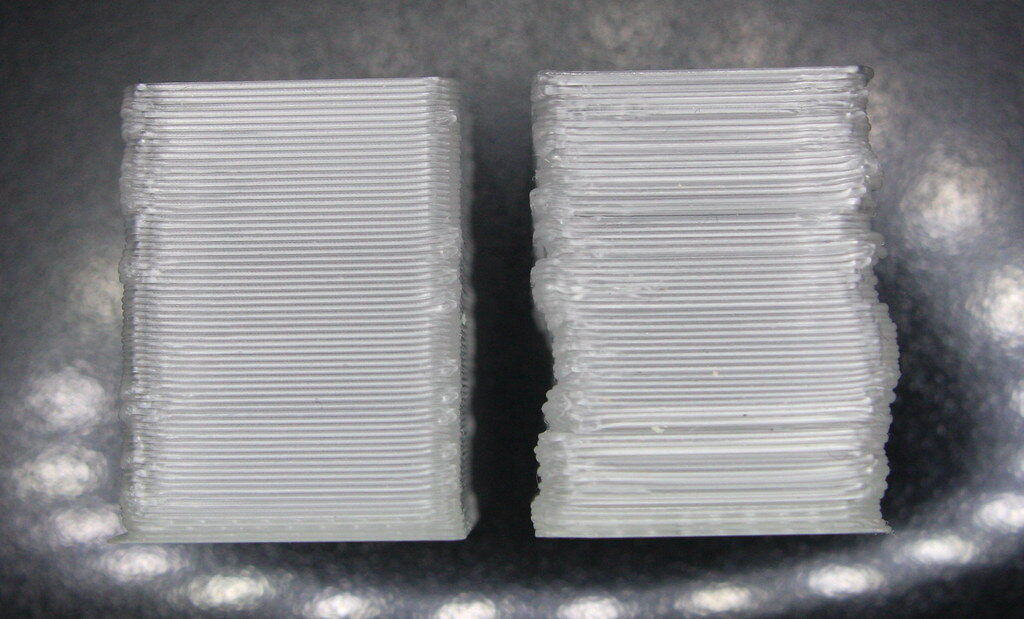
Once the printer is reliable, chase polish. Ringing, or ghosting, shows up as faint echoes of a sharp feature repeating along the wall just after it, and it gets worse as speed and acceleration rise. The test is to print the same part at two acceleration values: if the echoes fade at the lower one, it’s ringing. The first change is input shaping if your firmware has it; otherwise lower acceleration and jerk.
On Klipper, input shaping and pressure advance are configuration settings in printer.cfg. On Marlin 2.1.2 and later, input shaping and linear advance must be enabled in Configuration_adv.h and the firmware recompiled and reflashed, unless your printer’s vendor build already ships with them turned on. Our Klipper, OctoPrint and Marlin comparison covers where each one lives.
A Z-seam is the scar where every layer starts and ends. Set it to rear, or to the sharpest corner so the geometry hides it, and use wipe and coast to shrink the blob. Newer slicers also offer scarf seams, which taper the start and end of each loop. If the seam still bulges, pressure advance is the next change, not temperature.
To reduce visible layer lines, drop the layer height, or use variable layer height so only the curves get thin layers. Prusa keeps layer height below 80% of the nozzle diameter, about 0.32 mm on a 0.4 mm nozzle, and generally not under 0.10 mm. For finer detail, change the nozzle: Prusa’s mixed-nozzle example prints perimeters with a 0.25 mm nozzle for a detailed surface and infill with a 0.6 mm one.
Overhangs and bridges that droop or sag mean the plastic stays soft too long before it sets. The test is an overhang test print, which shows the angle where the surface starts to curl; MatterHackers advises keeping overhangs at 45° or less. The first change is more part cooling, which PrusaSlicer sets separately for bridges and overhangs, then a slower bridge speed if bridges still sag. On small parts, a minimum layer time slows each layer so it can cool before the next one lands.
Pillowing and gaps in top layers, meaning bumps, holes or a quilted look on a flat top surface, show the top skin has too little support underneath it. The test needs no printing: check the top layer count in your profile. The first change is to add top layers, or raise the top thickness so the slicer adds them for you at any layer height.
Material Baselines and the Maintenance That Stops Repeat Failures
Keep per-material starting points and adjust from there, one variable at a time. These are Prusa’s recommended values; where your brand’s label differs, the label wins:
- PLA: 215 °C nozzle on the first layer and 210 °C after, 60 °C bed (Prusa’s PLA guide). The Atlantis Press paper gives 190–230 °C as the usual PLA range.
- PETG: 230 °C on the first layer and 240 °C after, 85 °C bed then 90 °C, fan off for the first few layers and half power after.
- ABS: 255 °C nozzle, 100 °C bed (80–110 °C by part size), an enclosure or a draft shield, and about 1–2% shrinkage. ASA warps less.
- Nylon (PA): 285 °C nozzle, 110 °C bed and an enclosure for pure PA, which warps; carbon-fiber PA warps far less (Prusa’s polyamide guide).
- TPU and other flexibles: 230–245 °C nozzle, 60–75 °C bed, around 20 mm/s and no more than 30–40 mm/s, with retraction reduced or off (Prusa’s flexible materials guide).
Dry filament before you chase settings, without overheating it: Prusa’s drying guide lists PLA at 45 °C for 6 hours, PETG at 55 °C for 6 hours, TPU at 60 °C for 4–6 hours and ASA at 80 °C for 4 hours. For nylon, Prusa says at least 4 hours below 90 °C. Go hotter and the filament softens and sticks together on the spool.
Carbon-fiber blends chew through brass nozzles. A worn nozzle shows up as under extrusion and stringing long before it looks worn, which sends people chasing the wrong settings. Our hardened steel nozzle guide compares four materials for that job.
Clean the nozzle and bed regularly, revalidate the mesh, store build plates flat and keep filament sealed with desiccant. Belts, rail lubrication and nozzle and PTFE replacement go by print hours, and our 3D printer maintenance schedule lists the jobs at 50, 200 and 500+ hours. Keep the firmware current, and if temperature fixes stop behaving, check the hotend reading against a separate thermometer.
The bench kit is short: digital calipers, isopropyl alcohol, a brass brush and nozzle cleaning needles. The test prints are a temperature tower, a retraction test, a flow cube, an XYZ calibration cube and overhang and bridge tests; download them from Printables or Thingiverse and keep using the same files, so results compare across spools.
When the next print fails, I’d enter these 3D printing problems solutions at the symptom instead of reading them top to bottom. My rule is short: run one test, make one change, and write down what worked. Change two things at once and you can’t tell which one fixed it.
Frequently Asked Questions
What should I check first when a print fails? Run the 5-minute triage: filament, hardware, bed, slicer and drafts. Then check the Z-offset, dry the spool and run a 100 mm extrusion test, in that order.
How do I tell under extrusion from over extrusion? Under extrusion shows gaps, thin walls or missing layers; over extrusion shows blobs, zits and walls that measure too thick. A single-wall flow cube measured with calipers settles it.
Why does ABS warp, and how do I stop it? ABS shrinks as it cools, around 1–2% by Prusa’s figure, so the cooling upper layers pull the corners up. Keep the bed around 100 °C, print in an enclosure or with a draft shield, keep the fan off for the first layers, and add a brim.
How often should I clean or replace my nozzle? Clean it whenever extrusion or surface quality drops, and replace it when clogs keep coming back or the orifice is worn; the maintenance schedule above sets the intervals by print hours. Carbon-fiber and other abrasive filaments wear brass nozzles much faster.
Do I need different settings for each brand of filament? Yes. Start from the material baselines above, print a temperature tower and a retraction tower for each new brand, and save a calibrated profile for every filament you use.
Sources
- MatterHackers: 3D Printer Troubleshooting Guide
- Prusa Knowledge Base: Cooling
- Prusa Knowledge Base: PETG
- Magigoo: 3D printing bed adhesives by filament
- Prusa Knowledge Base: ABS
- Simplify3D: Print Quality Troubleshooting, Stringing or Oozing
- NinjaTek: Troubleshooting Guide
- Prusa Knowledge Base: Layers and perimeters
- Prusa Knowledge Base: Infill patterns
- Prusa Blog: How to improve your 3D prints with annealing
- Atlantis Press (ICMIA 2017): Research on the Shrinkage of Model with Hole in PLA Material Based on the FDM 3D Printing
- ASEE 2024 Annual Conference: Preliminary Investigation of Dimensional Accuracy of 3D-Printed PLA
- Springer, International Journal of Advanced Manufacturing Technology: Shrinkage compensation of holes via shrinkage of interior structure in FDM process
- Prusa Knowledge Base: Experimental printing with different nozzle diameters
- Prusa Knowledge Base: PLA
- Prusa Knowledge Base: Polyamide (Nylon)
- Prusa Knowledge Base: Flexible materials
- Prusa Knowledge Base: Drying filament