 TreiD
TreiD
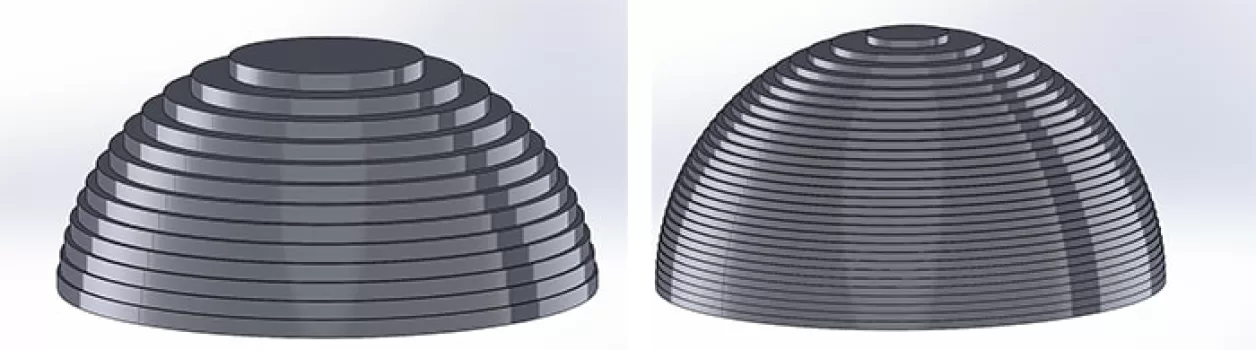
3D printer resolution comes down to two numbers per technology, and neither one is the headline figure on the box. On an FDM machine, the nozzle diameter sets your detail in XY and the layer height sets it in Z. On MSLA resin printers, XY detail is the screen’s pixel size and Z is the layer height.
The finest layer a machine can do is not automatically the best one. The Prusa Knowledge Base puts the point of diminishing returns at about 0.10 mm. Below that, print time climbs much faster than quality. At the end there’s a pin-and-hole test plate you can print to see what your own machine actually resolves.
What 3D Printer Resolution Means: XY Detail vs Layer Height
Resolution splits into two directions. XY resolution is the smallest feature the printer can put down within a single layer: how sharp a corner is, how thin a wall can be, how clean the edge of embossed text looks. Z resolution is the layer height, meaning the thickness of each slice stacked on the one below.
XY sets a hard floor. Bondtech’s nozzle guide puts it bluntly: a 0.4 mm nozzle can’t build geometric features smaller than 0.4 mm in the XY plane. That’s why the nozzle section below matters more for fine features than the layer-height setting. The filament you feed in, 1.75 or 2.85 mm, has no say in this: it melts in the hotend and leaves through that much narrower nozzle.
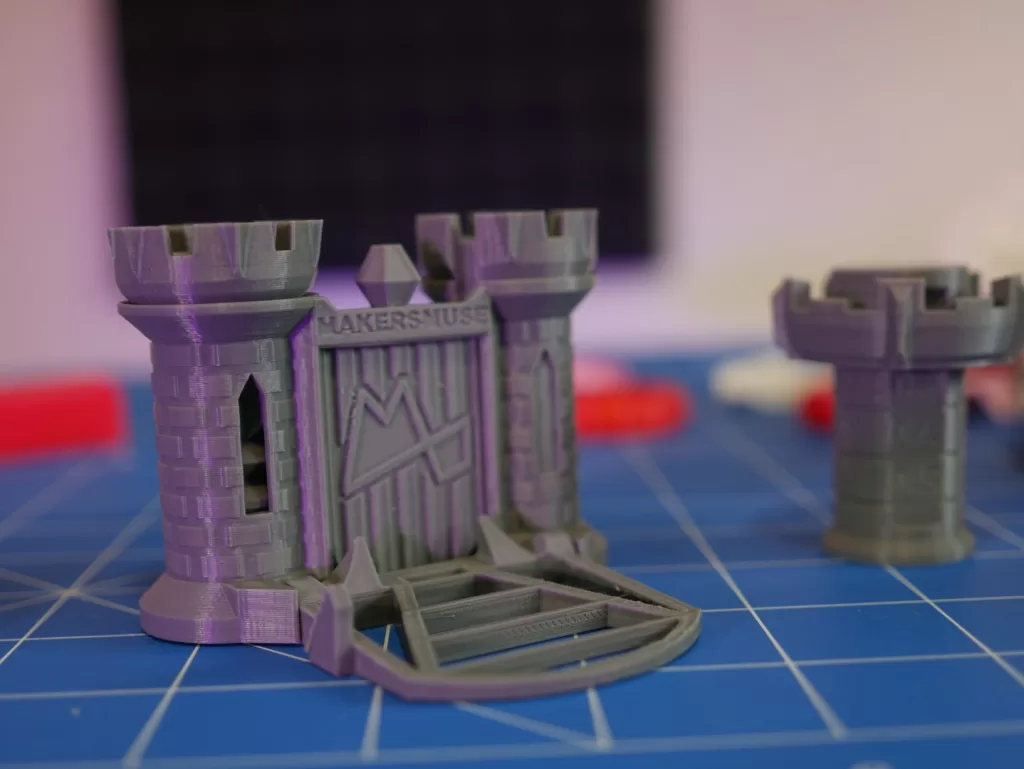
Thinner layers improve vertical resolution, but the printer has to lay down more of them, so every print takes longer. On the Maker’s Muse Clearance Castle below, the embossed lettering, the window slots and the battlements are all XY detail, set by the nozzle.
Why the Advertised Resolution on a Spec Sheet Misleads
The micron figure on an FDM spec sheet usually describes two things: the positioning step, meaning how finely the motion system can place the toolhead in XY, and the thinnest layer the machine will accept. Neither is detail you can see. The toolhead may move in tiny steps, but it lays down a bead of molten plastic roughly as wide as a 0.4 mm nozzle, and any feature narrower than that bead gets swallowed by it. A step that’s a small fraction of the line being drawn can’t make that line any sharper.
The minimum layer height does not tell you which layer height prints most accurately. A PLA comparison found that the most accurate layer height depended on the printer: 0.05 mm gave the smallest errors on a Prusa MK4, while 0.20 mm did best on a LulzBot TAZ Pro.
So treat advertised 3D printer resolution as a ceiling, not a promise: the same layer height can perform differently on different printers. If you’re shopping, compare nozzle options with the 3D printer comparison tool instead of trusting the micron line. For everything else worth weighing before you buy, see the 3D printer buying guide.
FDM Resolution: Nozzle Diameter Sets Detail, Layer Height Sets Smoothness
On FDM, the nozzle sets your floor in XY. The Prusa Knowledge Base says layer height changes only the vertical resolution, and for more resolution in the XY plane it points you to a different nozzle diameter. So corners and small holes depend on the nozzle rather than the layer height.
The 0.4 mm nozzle is the most common for a reason. A Kaunas University of Technology master’s thesis on FDM print speed and accuracy names it the most common nozzle because it strikes a good balance between quality and printing speed. It puts the most common layer-height range at 0.1–0.3 mm.
Layer height is tied to the nozzle. The Prusa Knowledge Base sets the ceiling: keep layers below 80% of the nozzle diameter, which is about 0.32 mm on a 0.4 mm nozzle. For a target, a Micromachines paper on 3D printed conductive structures quotes the common FDM rule of thumb of about 50% of the nozzle diameter before running its own resistance tests. The classic 0.2 mm layer on a 0.4 mm nozzle sits right on that 50% mark.
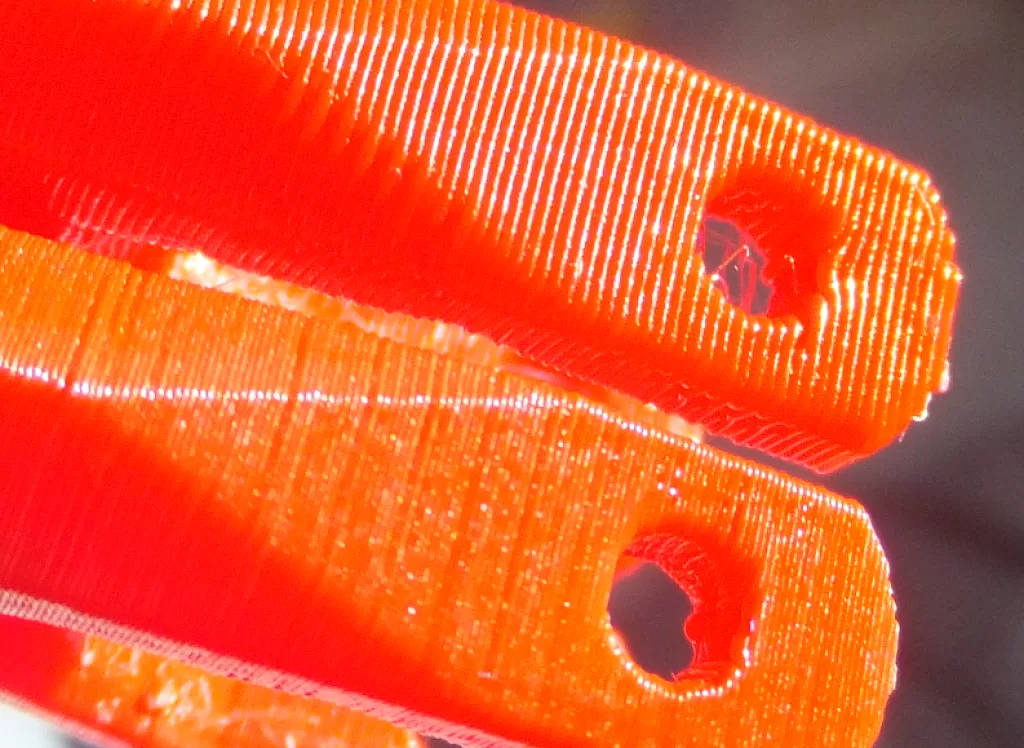
In the magnified UP Plus test print below, you can see every extruded line across the surface and around the small holes.
Resin Resolution: Pixel Size, Screen Size and Layer Height on MSLA, DLP and SLA
Resin flips the picture. On an MSLA printer, an LCD screen masks the UV light so only the layer’s cross-section cures, and Formlabs’ guide to resin printers puts it plainly: MSLA resolution is set by the LCD’s pixel size. That pixel size is the screen width divided by the number of pixels across it.
That’s why a bigger K count can fool you. The K only counts pixels across the screen; it says nothing about how wide that screen is. Here’s the math with round numbers I picked for illustration, not any specific printer: 130 mm ÷ 3,840 px = 33.9 µm, while 220 mm ÷ 5,760 px = 38.2 µm.
The higher-K screen has the bigger pixel, because it spreads more pixels over a much wider screen. Formlabs makes the same point from the other side: a large-format LCD printer only matches a smaller one’s accuracy if it uses the same pixel size. On any resin printer, run that division before you look at the K.
DLP works the same way, with a projector in place of the LCD. The number of micromirrors and the size of the build area set the resolution, so spreading the image over a larger platform makes every pixel bigger. Formlabs notes that DLP resolution drops as build volume grows, because projectors with many more pixels aren’t available.
SLA has no pixel grid at all. A laser traces each layer, so XY detail depends on the laser spot and how finely the machine steers it. The two aren’t the same number: Formlabs quotes the Form 3+ at an 85-micron laser spot but a 25-micron XY resolution, because the laser can trace shapes smaller than its spot.
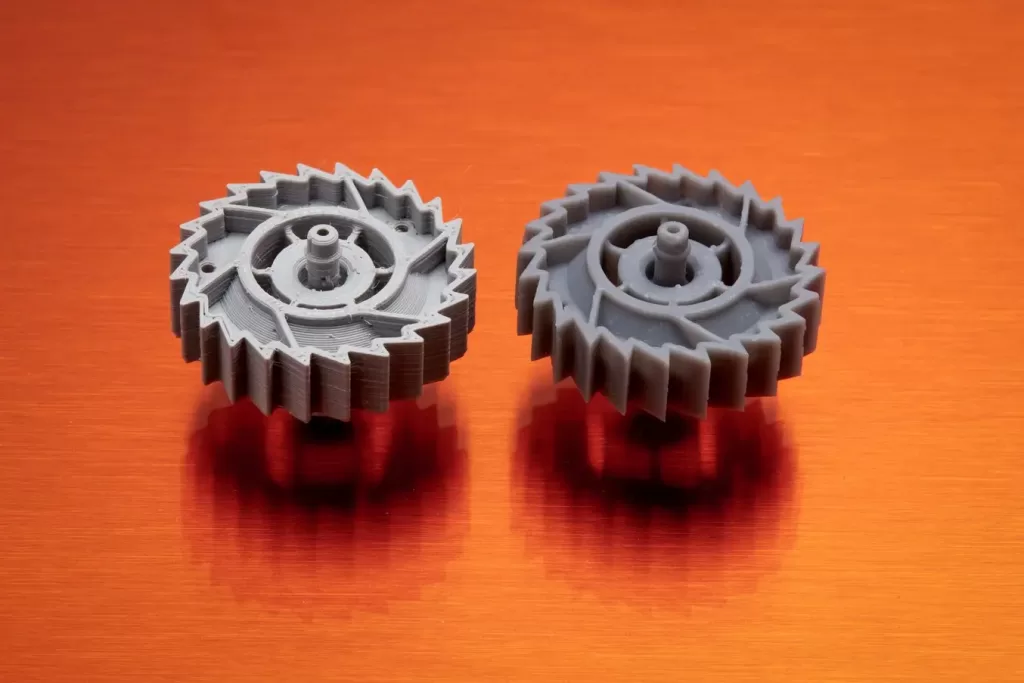
On all three resin types, Z is the layer height you set in the slicer, and Formlabs puts the standard range for most resin printers at 25 to 200 microns, so 0.025 mm layers are normal on resin. The trade is the same as on FDM: thinner layers mean more exposures and a longer print. In the Formlabs photo below, the SLA gear on the right comes out smoother than the FDM gear on the left, which shows its layer lines.
Why You Can Only Compare Resolution Within the Same Technology
A 3D printer resolution figure only compares cleanly against machines of the same type: FDM against FDM, resin against resin. On an FDM printer, a micron number describes a positioning step. On an MSLA printer, the same number describes a pixel of cured resin. They aren’t measuring the same thing.
The gap between the two is an order of magnitude. A 0.4 mm nozzle lays a bead about 400 µm wide. Both example screens in the resin section work out to pixels in the tens of microns, 34 to 38 µm, so each pixel is roughly a tenth of that bead.
The way layers join differs too. Formlabs’ FDM vs SLA comparison explains that FDM leaves voids between its rounded lines and bonds layers mechanically, so they may not fully adhere, while resin cross-links chemically across layers into a fully dense part. It also notes that at 100-micron layers, an FDM part looks vastly different from an SLA one.
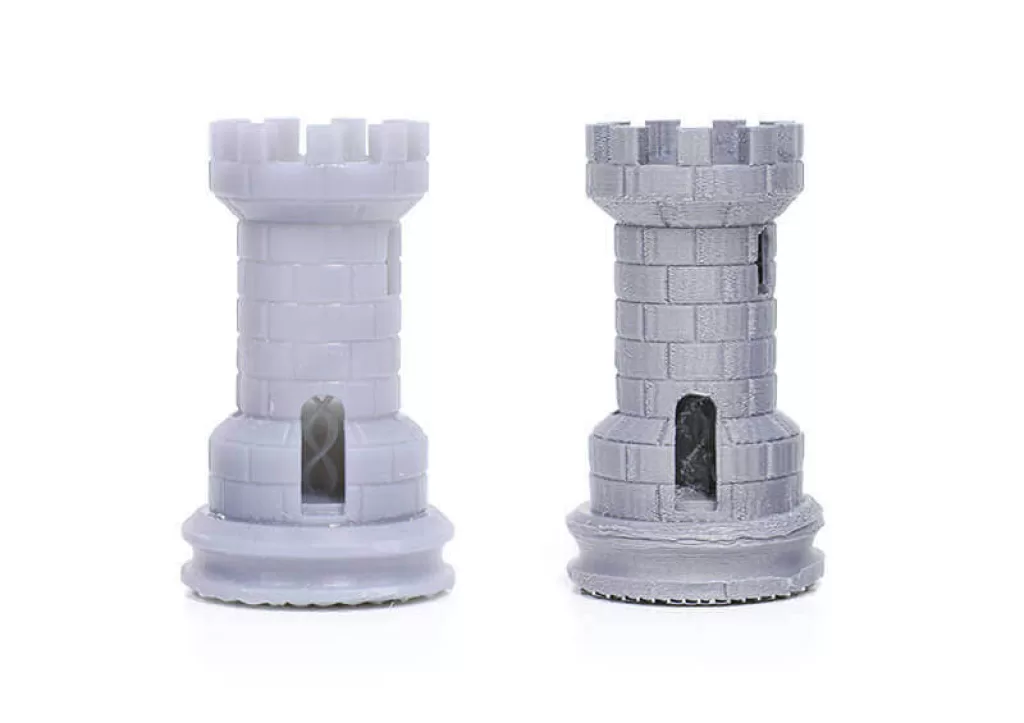
So putting an FDM micron figure next to a resin one compares a motor step with a cured spot, and tells you nothing about which machine prints finer detail. The Formlabs photo below shows the same tower printed both ways: the layer lines and rougher window give the FDM copy away.
How Much Resolution You Need for Miniatures, Functional Parts and Large Prints
This is how I’d match settings to what you print. Treat these as starting points, then check them against your own machine with the test at the end.
Miniatures and fine display pieces. Most miniatures are printed on resin, where the pixel size decides whether eyes, fingers and buckle edges come out crisp. Work it out with the screen width ÷ pixel count sum from the resin section and favour the smaller result, whatever the K count says.
For resin Z, none of the sources I cite here tests miniature layer heights, so I’d start from your resin maker’s recommended layer height and confirm it with the test plate at the end.
On FDM, the nozzle is the bigger lever, because the Prusa Knowledge Base ties XY detail to nozzle diameter, not layer height. Swap to a smaller nozzle such as 0.25 mm and edges get finer, and the 50% rule of thumb pairs it with layers around 0.12 mm. On a stock 0.4 mm nozzle, I’d start at about 0.10 mm layers; the print-time section below explains why going thinner rarely pays. If you’re pulling files from Thingiverse miniatures packs, print one model before committing to a whole squad.
Functional parts. A 0.4 mm nozzle at about 0.2 mm layers is a reasonable start, since it sits on the rule of thumb of a layer height around 50% of nozzle diameter.
Large prints. A 2025 comparison of four large-format FDM printers found that moving from a 0.4 mm to a 0.8 mm nozzle cut print time by up to 42%, while detail suffered in sharp corners and small holes. So a bigger nozzle suits large parts where those features matter less.
Layer Height vs Print Time: What Finer Layers Cost You
In that same study, halving layer height from 0.2 mm to 0.1 mm doubled print time, while surface roughness (Sa) dropped by only about 1 µm.
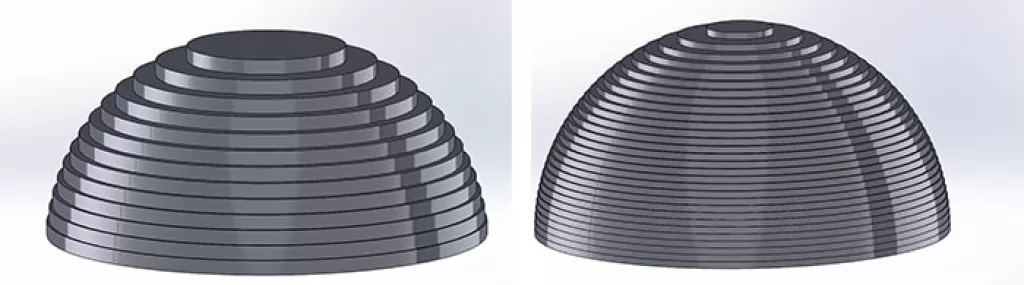
Prusa’s guidance lands in the same place: below about 0.10 mm, going to 0.07 or 0.05 mm adds only a relatively minor quality gain for significantly longer print times. The PLA comparison is the counterpoint: on a Prusa MK4, 0.05 mm gave the smallest dimensional errors.
Nozzle size is the other time lever, and the 42% saving from the large-prints section isn’t the whole story. Because Prusa’s 80% layer-height ceiling scales with the nozzle, a 0.8 mm nozzle allows layers up to about 0.64 mm, against about 0.32 mm on a 0.4 mm one, so you save time in Z as well. For big, chunky parts, that’s the swap I’d make first.
How to Test the Real Resolution of Your Own Printer
A spec sheet can’t tell you what your printer really resolves, and the MK4 versus TAZ Pro result shows why: the most accurate layer height depended on the printer. So measure your actual 3D printer resolution, after running extruder calibration so the test reflects the machine rather than an extrusion setting.
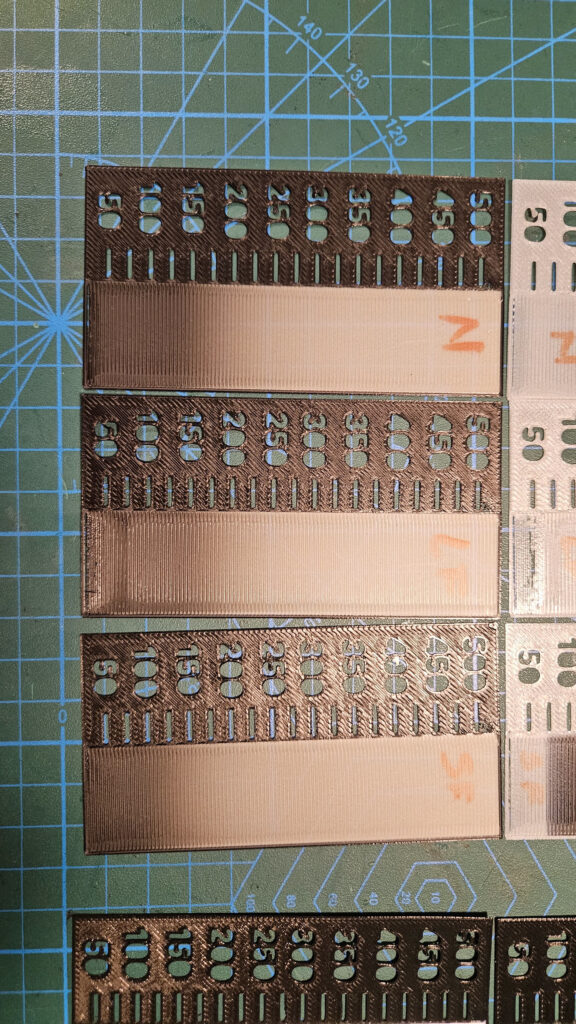
Model a small plate with a row of pins and a row of holes from 0.05 to 0.5 mm in 0.05 mm steps, labelled 50 to 500 in microns like the plates pictured above. Add walls at 0.4, 0.6 and 0.8 mm, plus 1 mm-deep embossed and engraved text at 6, 8 and 10 pt. A parametric model suits this test: change one parameter and every feature resizes with it.
Print it at your normal settings, then read it with calipers. The smallest pin that survives and the smallest hole that stays open tell you your real XY resolution. The thinnest wall that prints solid shows how your slicer handles widths near the nozzle size.
For Z, print the same model at 0.2 mm and 0.1 mm and compare the curved surfaces side by side. If you can’t see a difference worth double the time, you have your answer for that kind of part. If something looks wrong rather than just coarse, like stringing, blobs or gaps, work through these quick fixes first. No resolution setting hides a tuning problem.
Rerun the test after a nozzle swap, a firmware change or a new material, so your settings rest on a result measured on your own machine.
Sources
- Prusa Knowledge Base: Layers and perimeters
- Bondtech: How to choose a nozzle
- Polymers (via PubMed Central): Comparative Analysis of Dimensional Accuracy in PLA-Based 3D Printing
- Kaunas University of Technology: Research of dimensional accuracy and surface quality dependency on printing speed of FDM 3D printed parts (master’s thesis)
- Micromachines (via PubMed Central): Influence of Process Parameters on the Resistivity of 3D Printed Electrically Conductive Structures
- Formlabs: Guide to Resin 3D Printers, SLA vs. DLP vs. MSLA vs. LCD
- Formlabs: FDM vs. SLA, Compare Filament and Resin 3D Printers
- Academic Research Journal of Technical Vocational Schools: Comparative Analysis of Different 3D Printers (Kartal & Kaptan, 2025)