 TreiD
TreiD
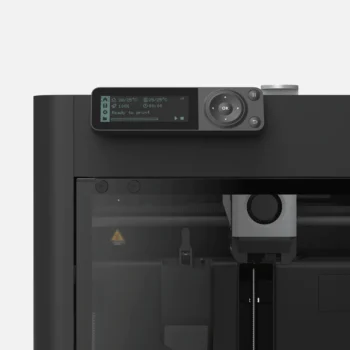
The right 3D printer belt tension is the target your printer’s maker gives; Prusa’s belt-tuning wizard, for example, gives 85–95 Hz for the CORE One L and treats the difference between the two belts as a separate check. A frequency reading gives you a number you can repeat next month, and a before-and-after test print tells you whether the change fixed anything.
Creality’s K2 and Ender-5 Max pages publish a procedure but no target number, so on printers like these your own baseline and the test print do a lot of the work here.
What 3D Printer Belt Tension Controls: Ghosting, Dimensional Accuracy and Skipped Steps
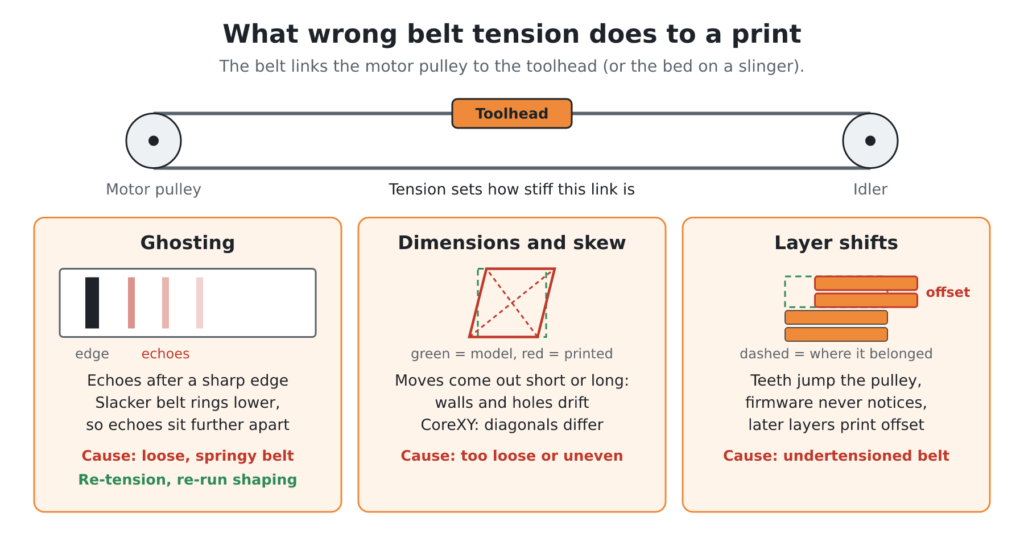
3D printer belt tension sets how stiff the link is between the motor pulley and the toolhead, or the bed on a slinger. Every timing belt stretches a little under load, and tension decides how much of that stretch ends up in the print. When tension is wrong, you see it in three places: ghosting, dimensions and layer shifts.
Ghosting is the toolhead ringing after a sharp change of direction, and it leaves faint echoes of an edge or a letter a little way along the wall. Klipper’s resonance compensation guide lists loose or springy belts among its causes, and its formula, ringing frequency = speed × number of ripples ÷ the distance they cover, shows why a slacker belt, which rings at a lower frequency, spreads the echoes further apart. The same guide notes that tightening belts can change those resonance frequencies, so after a big tension change, re-measure them and re-run input shaping.
Dimensions suffer too: Creality’s Ender-5 Max page warns that a belt that’s too loose can make the hotend move a smaller or larger distance than the software expects, so walls and holes drift from the model. On a CoreXY both belts drive both axes, so uneven tension shows up as skew: the diagonals of a square stop matching. Go slack enough and the teeth jump the pulley on a fast move; Gates’ belt drive maintenance manual warns that undertensioned timing belts can jump teeth or ratchet. The firmware never notices, so every layer after that prints offset: a layer shift.
Signs Your Belts Are Too Loose or Too Tight
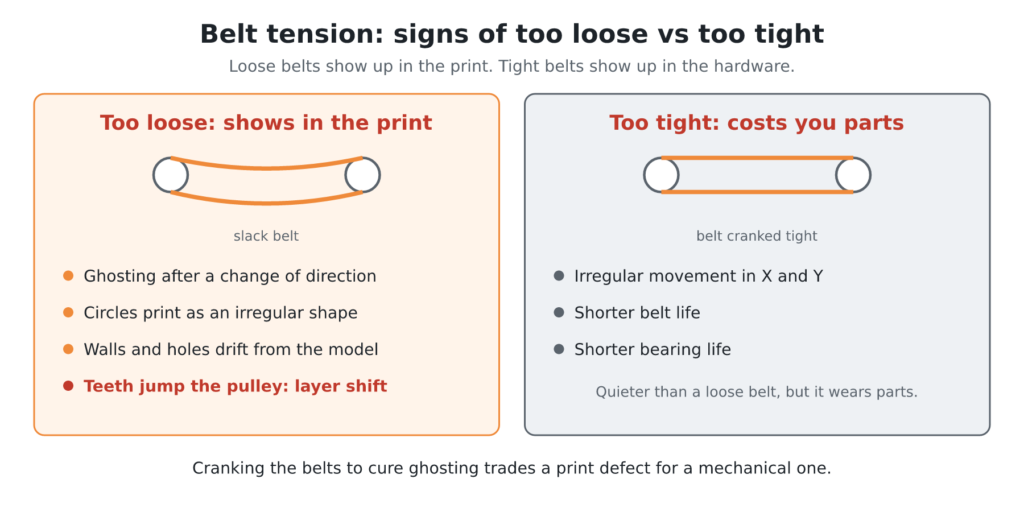
Too loose shows up in the walls first. Prusa’s belt tension article names ghosting and layer shifts, and circles that print as an irregular shape instead of a perfect circle. Ghosting is strongest just after a change of direction, and in the worst case the whole print steps sideways partway up.
Too tight is quieter, and it costs you parts instead of prints. Prusa says an over-tightened belt can cause irregular movement in the X and Y axes, and Gates’ manual warns that overtensioning shortens both belt life and bearing life. So cranking the belts to cure ghosting trades a print defect for a mechanical one.
Tension Gauge, Belt Tension Meter or Phone App: Which Measurement to Trust
Measuring frequency has solid precedent. The manual for Gates Unitta Asia’s U-508 sonic belt tension meter describes a sensor that picks up the sound of a plucked span and a microcomputer that turns its vibration frequency into tension. Prusa’s belt-tuning wizard does the same job on CORE One printers: it measures the vibration frequency of each belt and tells you whether to tighten or loosen it.
The cheapest tool is a deflection or force gauge: press the belt at the middle of its span by a set distance and read the force it takes. Gates’ manual points out that this force-deflection method doesn’t measure span tension directly, and pressing slightly off-centre or a little further changes the reading, worse still on short printer spans. It’s good enough as a go/no-go check, or to compare two belts on the same machine, but it won’t give you a number to hold against a published Hz target.
A dedicated sonic meter like the U-508 picks up the vibration with a sensor rather than your ear, and once you enter the belt’s unit mass, width and span length, it displays the tension in newtons. That precision is real, but on a hobby printer the frequency itself is the number you work with, and a cheaper tool gives you that too.
That cheaper tool is a phone app: park the toolhead, pluck the belt, read the frequency in Hz. Gates’ free Carbon Drive app, on Android and iOS, is built for bicycle belts but reads any plucked belt’s vibration frequency through the microphone, and the free Spectroid on Android is a general spectrum analyzer where the belt’s note shows as the tallest peak. It’s the pluck test with a number attached; by ear, plucking a belt mid-span like a guitar string only tells you whether a note sounds higher or lower, or whether two belts sound alike.
The app is repeatable as long as the pluck point and park position stay fixed and you take a few readings rather than trusting one.
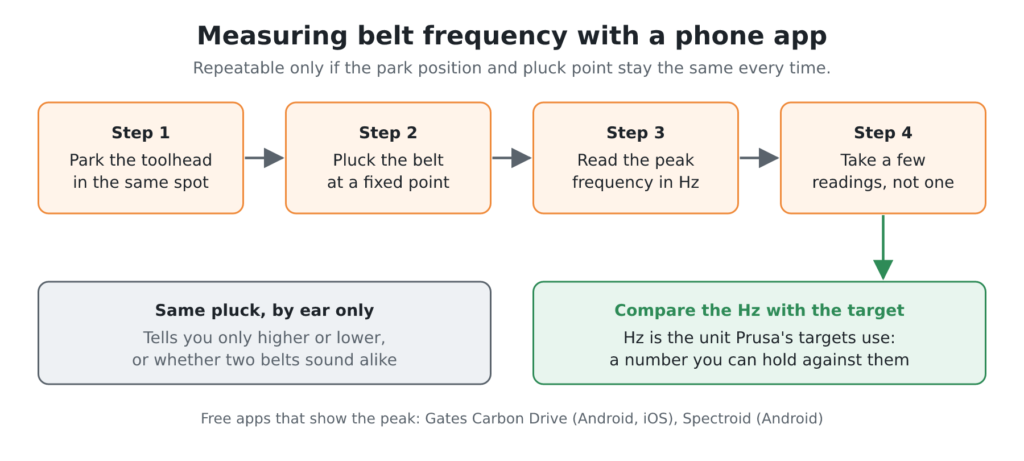
My verdict: trust a frequency reading, from a sonic meter if you own one or a phone app if you keep the setup fixed, because Hz is the unit Prusa’s targets are written in, and keep the gauge and the by-ear pluck for quick checks. A phone isn’t a calibrated instrument (Spectroid’s listing says as much), which is why the fixed setup and several readings matter.
Finding Your Printer’s Target Frequency and the Right Belt Span to Measure
For the CORE One L, Prusa’s wizard puts the optimal range at 85–95 Hz, with up to 8 Hz of difference allowed between the two belts. Prusa’s tensioning article sets the standard CORE One higher, with the upper belt at up to 98 Hz, so even printers from one family don’t share a target. The wizard also warns that gantry misalignment can affect the measurement, so align the gantry first.
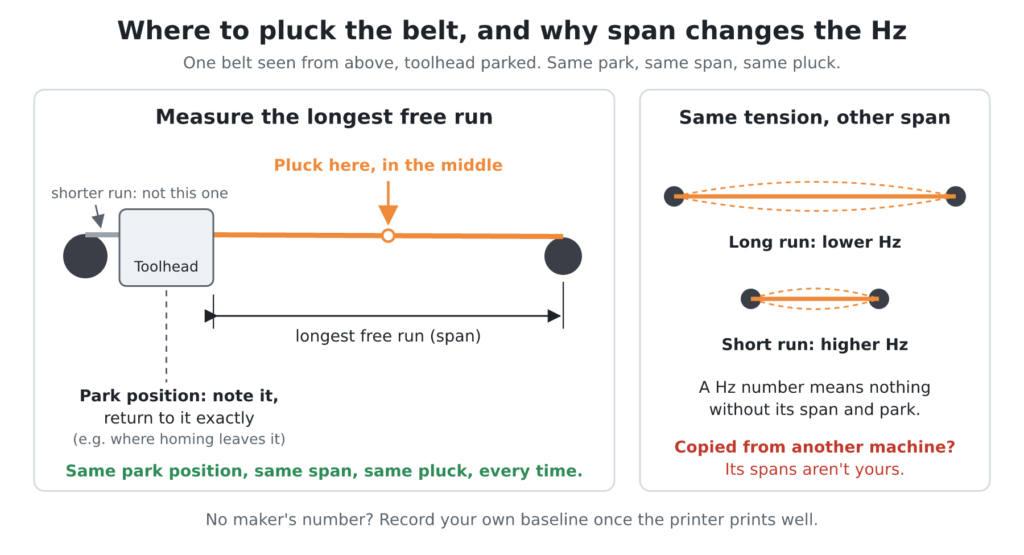
The Creality pages I read give a procedure but no number. If your printer is the same, build your own baseline. Wait until it’s printing well, park the toolhead somewhere you can return to exactly, such as where your homing routine leaves it, and record each belt’s frequency. That becomes your target, and any drift from it tells you when to retension.
Measure each belt on its longest free run and pluck it in the middle, and note where the toolhead was parked: same park position, same span, same pluck is what keeps your own readings comparable. Span matters because, at the same tension, a longer free run vibrates at a lower frequency: the U-508 manual’s formula has tension rising with the span squared times the frequency squared. So a Hz number means nothing without the span and park position it was taken at. That’s also why a target copied from another machine is useless: its spans aren’t yours.
How to Tension a 3D Printer Belt, Step by Step on Bed Slingers and CoreXY
Before you touch a screw, print the test parts from the verification section below so you have a before sample. Then check the belt path: teeth facing the pulleys, the belt running flat on the idlers, and no edge riding hard against a flange. Gates’ manual notes that a well-aligned timing belt only touches a flange lightly, while a misaligned one rides hard against it and gets noisy, and no amount of tension fixes that.
A bed slinger has two independent belts: X on the gantry and Y under the bed. With knob tensioners you just turn the knob; without one, loosen the idler or motor-mount screws, pull the bracket to take up the slack and retighten. My Ender 3 Pro is the second kind: it came without an X-belt tensioner, so I bought a separate one, which turned the X axis into the knob routine; my Biqu B1 shipped with tensioners on both X and Y. Either way, turn in small steps, measure after each, and aim each belt at its own baseline, not at the other belt.
A CoreXY works differently (here’s how it compares with a bed slinger). Prusa tells CORE One, CORE One INDX and CORE One L owners to tighten both tensioner bolts evenly and alternately, half a turn at a time for small adjustments, so the gantry stays square, and that is a sensible habit on any two-bolt tensioner.
Creality’s procedure is different. On the Ender-5 Max you adjust X and Y separately: loosen the tensioner’s fixing screws, turn the adjustment screw, then retighten the fixing screws. You also have to remove 10 screws just to reach the Y-axis tensioners. Take your final reading after the fixing screws are tight.
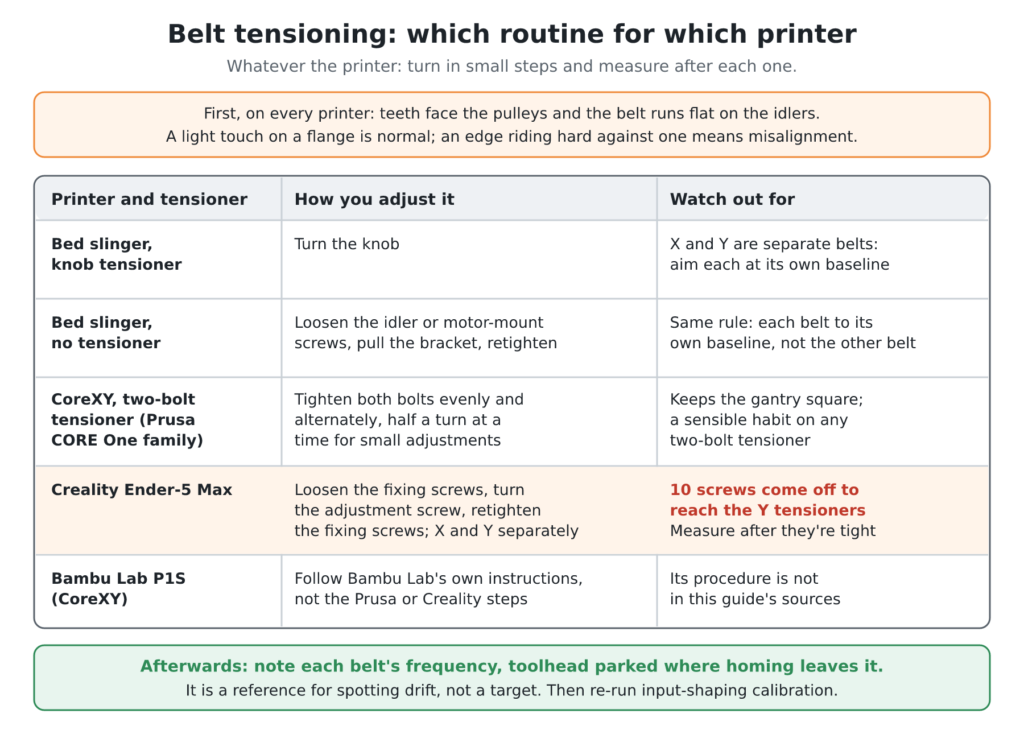
The P1S I own is a CoreXY too, but none of the sources behind this guide cover its belt procedure, so on a P1S follow Bambu Lab’s own instructions rather than the Prusa or Creality steps above. Once it’s done, record each belt’s frequency with the toolhead parked where homing leaves it and write it down. Treat that number as a reference for spotting drift at the next check, not as a target to tune toward.
After tensioning, re-run whatever resonance or input-shaping calibration your firmware offers; Creality’s K2 procedure ends with Settings, Device Self-Check, Input Shaping. Klipper has input shaping built in, and my Klipper vs OctoPrint vs Marlin post explains how it compares with the other two.
Matching Both Belts on CoreXY Printers
On a CoreXY, Prusa treats matching the two belts as a separate criterion from hitting the target: the CORE One L can sit anywhere in 85–95 Hz, but the two belts may differ by no more than 8 Hz. So a pair at 86 and 94 Hz passes, while a pair at 85 and 95 Hz is inside the range but 10 Hz apart, and fails.
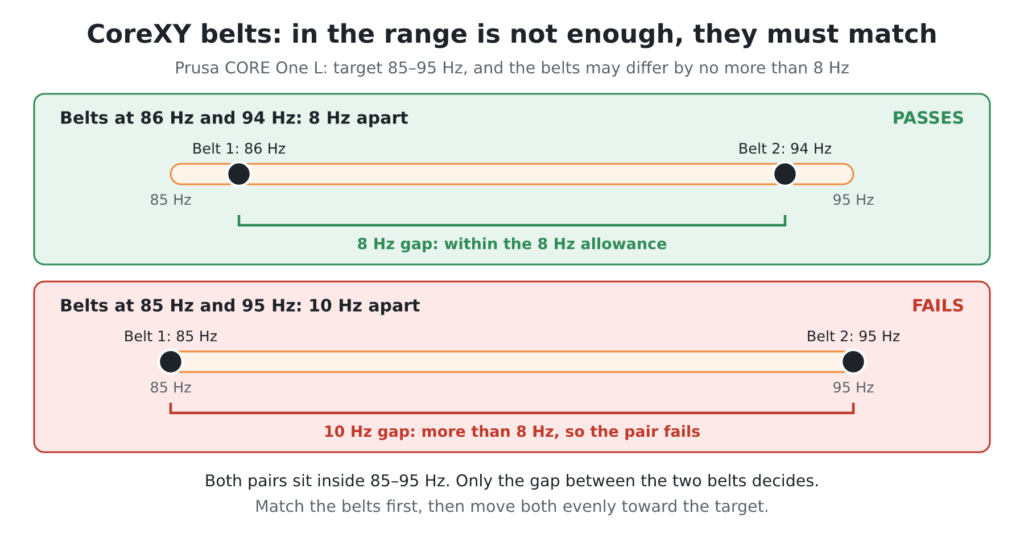
Start with the belt furthest from the target: tighten it if it reads low, loosen it if it reads high, in small steps, and re-measure both belts after each step. Stop when they agree within your printer’s allowance (8 Hz on the CORE One L), and only then move both evenly toward the target.
If your printer has no published allowance, match the belts as closely as your measurement repeats. If your app wobbles by a couple of Hz between plucks, trying to match closer than that is chasing noise.
Verifying the Result with a Test Print
A change in 3D printer belt tension only counts if a print shows it. Print the same file before and after, with the same slicer profile, filament, speed and acceleration, so the belts are the only thing that changed.
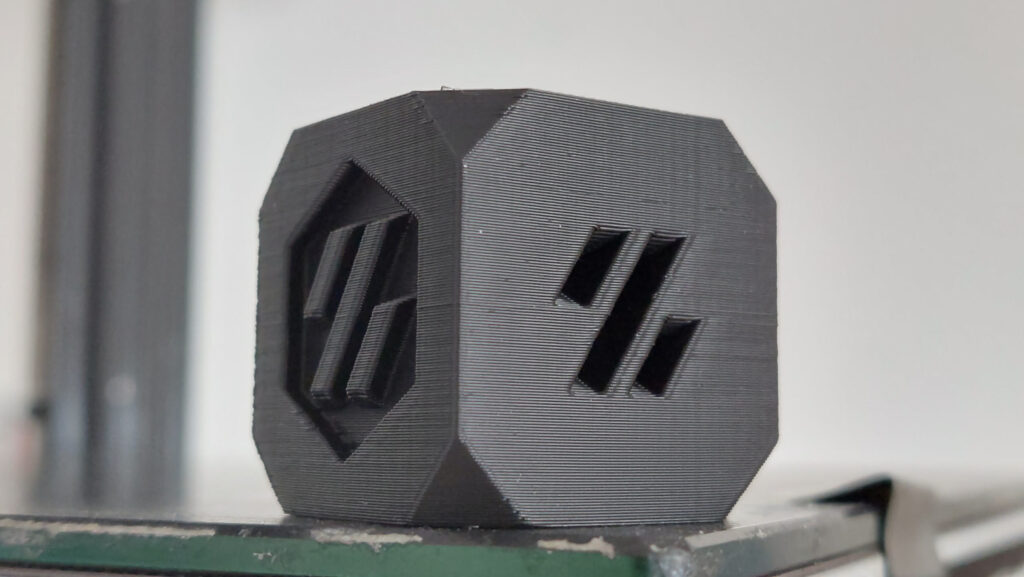
I’d use two simple parts. For ghosting, print a ringing test with sharp corners and a raised letter on both the X and Y faces, then measure the gap between echoes: if the echoes faded or moved closer to the edge, tension helped. For dimensions and skew, print a 100 mm square a few layers tall and measure both sides with calipers, plus both diagonals, which is the measurement that matters on a CoreXY.
If the diagonals differ, check belt matching on a CoreXY and frame squareness on a bed slinger; if both sides read short in the same axis, check steps per mm and extrusion before you touch the belts again.
If ghosting improved but didn’t disappear, re-run input shaping. If defects remain that belts can’t explain, my fixes for common print failures include a test for each.
When to Recheck Tension and When the Belt Needs Replacing
Belts don’t stay put. Creality’s K2 page warns that belts may stretch during long-term operation, and the looseness affects print quality and machine stability. The K2 tensions its belts automatically; for when that module fails or the belt has stretched beyond its range, Creality’s manual fix is to turn the two adjustment screws 2–3 turns clockwise, then re-run the input-shaping self-check.
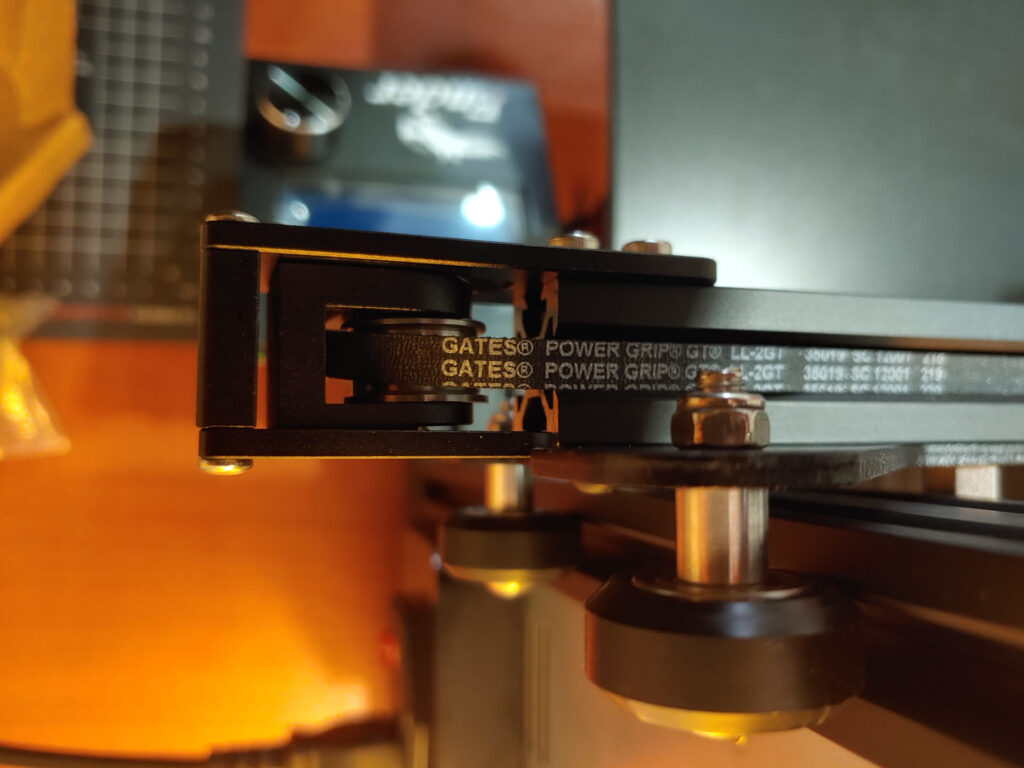
I’d check 3D printer belt tension on a schedule rather than waiting for ghosting to appear. Do it after moving the printer, after any work on the toolhead or gantry, and as part of the hour-based routine in my maintenance schedule. With your baseline frequency written down, a recheck takes a minute: pluck, read, compare.
Retensioning has limits, and some belts are simply done. Replace the belt if the edges are frayed or glazed, if any teeth are cracked or missing, if it won’t hold its baseline after you retension it, or if the tensioner has run out of travel. On my Biqu B1, the belts and the wheels were the parts that wore over the years, so check them on an older machine before you blame the tension.
After fitting a new belt, measure it, print for a while, then measure again before you trust the reading as your new baseline, and record the new number, because the old belt’s baseline doesn’t carry over if the length or brand changed.
Sources
- Prusa Research Help: Belt tuning wizard (CORE One family)
- Creality Wiki: K2 XY Belt Tensioning
- Creality Wiki: Ender-5 Max X/Y Belt Tensioning Guide
- Klipper documentation: Resonance Compensation
- Gates Corporation: Belt Drive Preventive Maintenance and Safety Manual (PDF)
- Prusa Research Help: Adjusting belt tension (CORE One, CORE One INDX, CORE One L)
- Gates Unitta Asia (via Nitta): Sonic Belt Tension Meter U-508 Operation Manual (PDF)
- Google Play: Carbon Drive by Gates Corporation
- Apple App Store: Carbon Drive Belt Tension Tool by Gates Corporation
- Google Play: Spectroid by Carl Reinke