 TreiD
TreiD
The 3D printer upgrades worth buying are the ones that remove a limit you already hit. Most upgrade lists treat a BLTouch, a dual Z kit and a silent board as if every printer needs all three. That’s how people spend real money on a machine that still can’t do the job they bought it for. I work the other way round: name the symptom, buy the one fix for it, then check whether the total has crossed the price of a modern printer that ships with all of it.
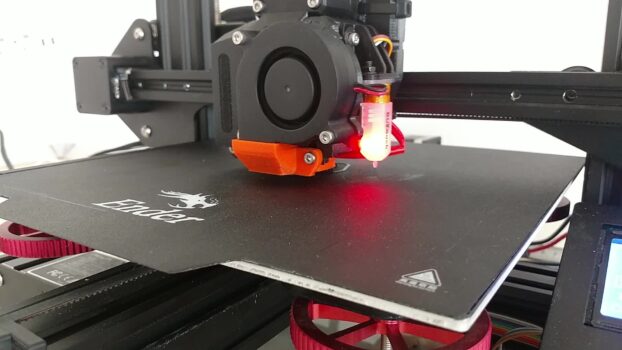
My own Ender 3 Pro is the example I keep coming back to. I bought it in 2019, and I think it has around 1,000 hours printed. Over the years it got a silent board, a metal extruder, stiffer springs, a new bed surface, a BLTouch and new firmware, for around $100 in total.
Name Your Printer’s Limit Before Buying Any 3D Printer Upgrades
Every one of the 3D printer upgrades worth doing removes one of five limits:
- a first layer you can’t trust
- materials the printer won’t handle
- noise you can’t live with
- long prints that die halfway
- overhangs and speed that fall apart
Pick the one that actually stops you. If your printer lives in a garage making PLA brackets, noise isn’t your limit, and a silent board is money spent on a feeling.
The quickest way to find your limit is a short failure log. For your next 10 prints, write down three things for each failure: what failed, at which layer or hour, and in what material. If the failures cluster in the first layer, your limit is the bed. If they cluster deep into long jobs, look at filament supply and the hotend instead.
Then check what the printer already has, and what its firmware will let you add. My Ender 2 Pro taught me that one. Creality didn’t publish the Marlin source for its board, so I couldn’t enable assisted bed leveling in its firmware. I asked Creality for the source and, separately, for a board that could take other firmware, and the reply took about 7 days and offered neither.
So before you order a probe or a sensor, confirm you can flash firmware that will actually use it.
Symptom to Upgrade: Which Fault Each Mod Actually Fixes
Find your symptom in the left column and buy only what sits beside it; the other rows are 3D printer upgrades you don’t need yet. An upgrade won’t help when the real fault is a loose wheel or a crooked frame, so check those first.
| Symptom | The fix |
|---|---|
| First layer patchy, or a different corner fails every print | Stiffer bed springs first, then an auto bed leveling probe |
| Ribbed walls, parts off in height | Align and square the Z axis, then a Z belt system or a dual Z axis kit |
| Clicking extruder or a cracked extruder arm | A metal extruder |
| PETG strings badly, or TPU won’t feed | A direct drive conversion |
| Nylon or polycarbonate on your list | An all-metal hotend |
| ABS and ASA warp off the bed or split along layers | An enclosure |
| Overhangs droop, bridges sag | A better part-cooling duct or fan |
| Clogs and under-extrusion that start mid-print | Better hotend airflow (that’s heat creep) |
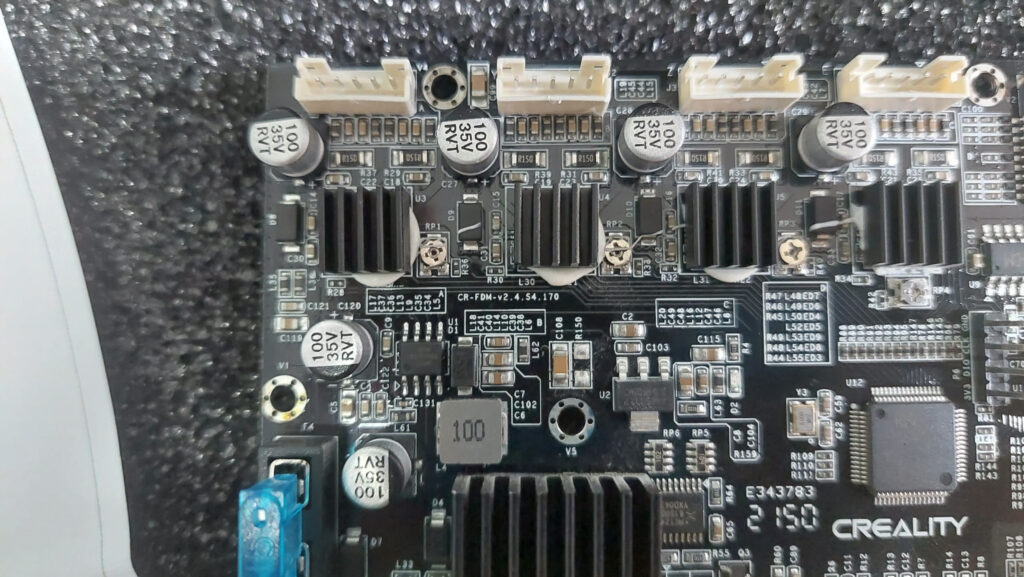
| Stepper motors whine | A silent board |
| Fans roar | Quieter fans, not a new board |
| Long prints end on an empty spool | A filament runout sensor |
| Ringing and shaking above a certain speed | Firmware with input shaping, not more cooling |
The sections below group these fixes by limit: first layer and Z, materials, cooling and speed, then noise and unattended prints.
First Layer and Z Problems: Auto Bed Leveling Installation and a Dual Z Axis Upgrade
Start with what a probe actually does. Marlin’s automatic bed leveling probes the bed and compensates for tilt and unevenness. The key word is “compensates”: the probe maps the problem and works around it. If the bed shifts on soft springs during a print, the map taken at the start is already wrong.
That’s why springs come before the probe. On my Ender 3 Pro, bed leveling took about two passes and then needed redoing roughly every 10 prints. I swapped the bed springs for the yellow, sturdier ones and later added a BLTouch.
Failed prints on it had come from Z-wobble and poor bed stability. After the upgrades and Klipper, with the BLTouch leveling automatically, the success rate was around 80%.
If the first layer fails the same way everywhere on the bed, a probe may not help, because the cause can be Z offset, flow or a dirty bed. My first layer troubleshooting checks run through those, cheapest first.
For the auto bed leveling installation itself, the hardware is the easy part: a bracket, a cable to the board, and the probe’s offset from the nozzle. Before you order, find out which pins on your board the probe connects to. Marlin’s probe configuration page asks you to know that first, and your board’s own documentation shows where they are.
The real work is in Marlin. In Configuration.h, enable BLTOUCH and a leveling mode such as AUTO_BED_LEVELING_BILINEAR, and set NOZZLE_TO_PROBE_OFFSET, the distance from the nozzle tip to the probe in X, Y and Z. The X and Y values you can measure with a ruler. Also enable Z_SAFE_HOMING, which makes G28 move to a safe X/Y position before homing Z, so the probe homes over the bed instead of off its edge.
The Z offset is the number that makes or breaks the first layer, and a ruler won’t find it. Home the printer, lower the nozzle until a sheet of paper just drags under it, set the result as the probe’s Z offset with M851, then save it with M500. In your start G-code, add G29 right after G28 to probe before every print, or M420 S1 to switch a saved mesh back on, because G28 turns leveling off by default.
I ran the BLTouch on my Ender 3 Pro under Klipper instead. There the equivalent is a bltouch section in printer.cfg, set up as in Klipper’s BL-Touch guide, plus the BED_MESH_CALIBRATE command to probe the mesh.
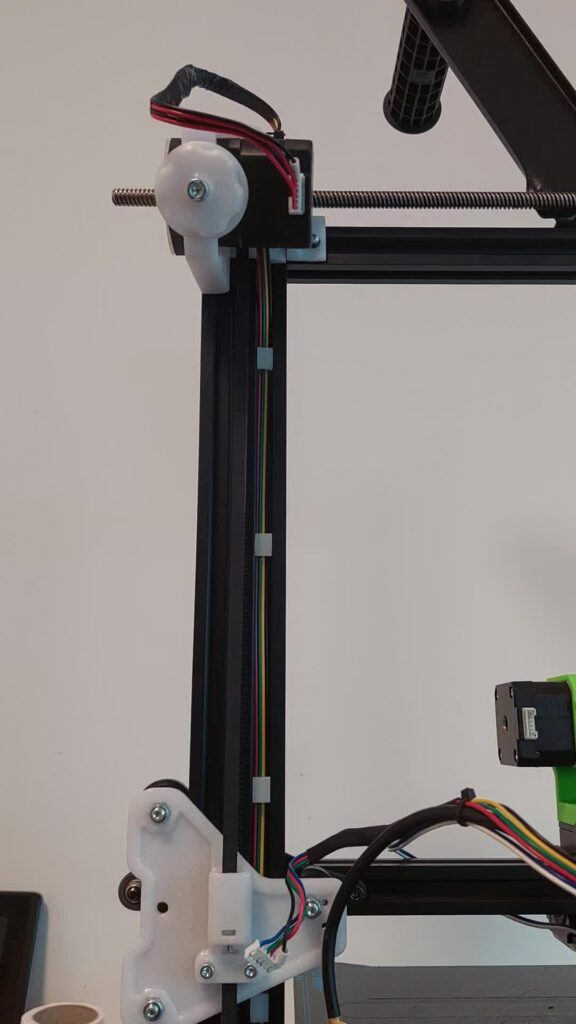
Z-wobble is the flaw I struggled with most on my Ender 3 Pro. A calibration cube I printed was 0.2 to 0.4 mm off, depending on how often I was doing maintenance. When I assembled that printer, the step that mattered most was getting the Z axis 100% aligned. It’s still the first thing I’d check before buying any Z kit.
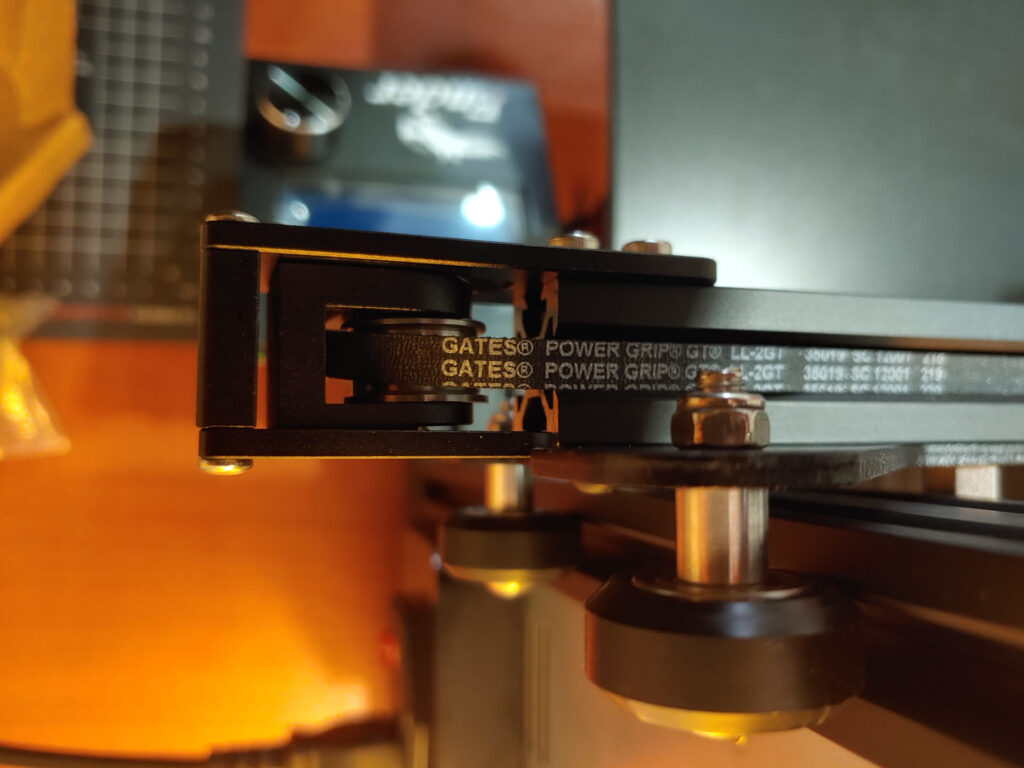
The common fix is a dual Z axis upgrade: a second lead screw so the gantry isn’t lifted from one side only. I went a different way on both my Ender 3 Pro and my Biqu B1. I installed a Z belt system, and it solved the Z-wobble on both. Whichever you pick, square the frame first, because a second screw on a crooked gantry just gives you two crooked screws.
Printing Beyond PLA: All-Metal Hotend, Direct Drive Conversion and an Enclosure for Your 3D Printer
Before buying anything for PETG, look at what it asks for. For its own PETG, UltiMaker gives a nozzle temperature of 225–245 °C and a build plate at 85 °C. Check two things on your own machine.
First, does the bed reach 85 °C and hold it through a long print? Second, what is the maximum hotend temperature the maker rates it for? If the printer clears both, PETG is a tuning job before it’s a hardware job.
What PETG buys you is heat resistance. UltiMaker’s PETG data sheet lists three heat figures:
- heat-deflection temperature: 76.2 ± 0.8 °C at 0.455 MPa, on printed test bars
- Vicat softening temperature: 82.9 ± 0.4 °C, on printed test bars
- glass transition: 77.4 °C, measured on the material itself
The same sheet rules PETG out for parts exposed to more than 76 °C.
Those figures are for UltiMaker’s own filament, so treat them as a guide for other brands, not a promise. My post on PETG vs PLA for functional parts covers which failures that heat margin actually prevents.
Nylon and polycarbonate are where a stock hotend can run out, because in a typical stock Bowden hotend a PTFE liner runs down toward the nozzle and limits the temperature you can safely run. An all-metal hotend removes the liner. Before you buy one, write down two numbers: the nozzle range on your filament maker’s page for that exact material, and the maximum hotend temperature your printer’s maker rates it for. If the bottom of the material’s range sits above that maximum, that gap is what the all-metal hotend buys you.
Before any direct drive conversion, check the extruder itself: the plastic arm on my Ender 3 Pro cracked after around 35 hours, which is why a metal extruder was one of its first upgrades. A direct drive conversion is the fix for flexible filament. It also helps with PETG stringing you can’t tune away on a long Bowden tube.
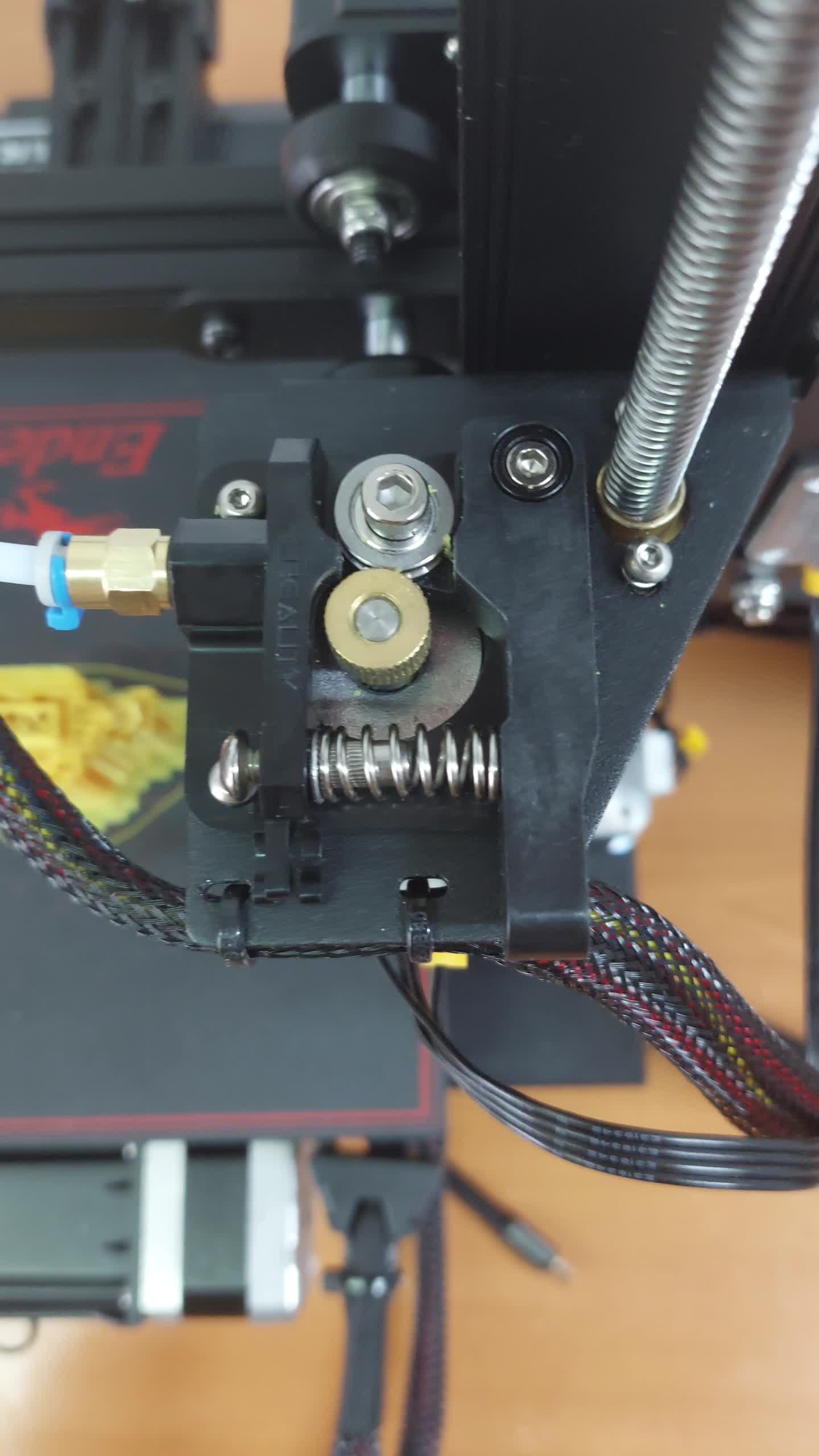
On my Biqu B1 I fitted a Printables direct drive mod that reuses the stock extruder. It was easy to install but slow to adapt: modify the 3D file, print, test, measure, redo.
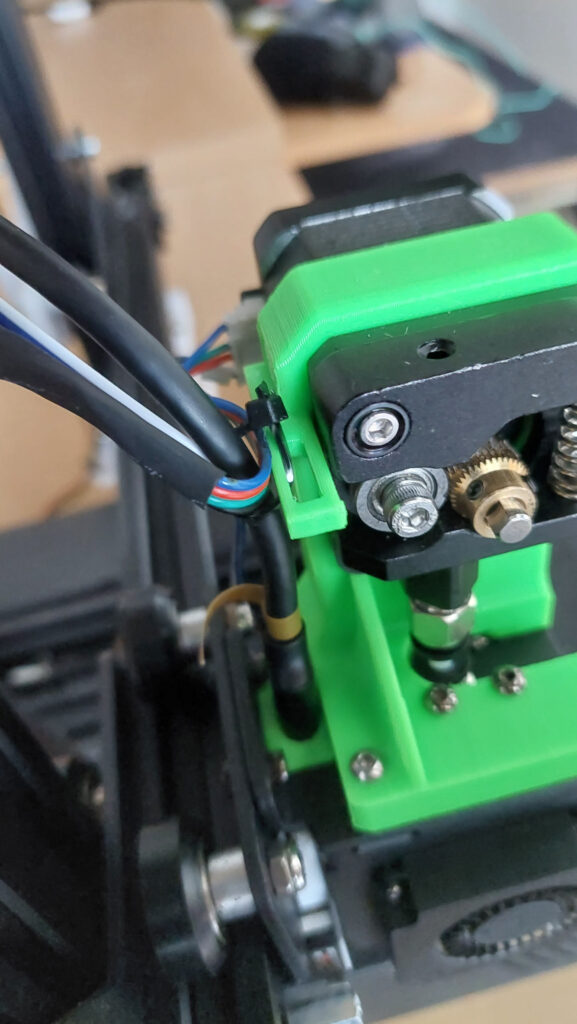
An enclosure for your 3D printer is the fix for ABS and ASA that warp off the bed or split along layers. Not every ABS part needs one, though. Which parts survive open air is covered in my post on printing ABS without an enclosure.
What an enclosure doesn’t do is clean the air. I print ABS, ASA and PETG on my P1S with the door closed and no problems, but you can still smell the fumes in the room. Plan ventilation alongside the box.
Overhangs and Speed: 3D Printer Cooling Upgrades That Make a Visible Difference
Two different fans hide behind “cooling”, and they fix different faults. The part-cooling fan blows on the plastic you just laid down, so it’s the one for droopy overhangs and sagging bridges. The hotend fan keeps heat from climbing into the cold side of the hotend. When it can’t keep up you get heat creep, which shows up as clogs and under-extrusion that start partway through a print.
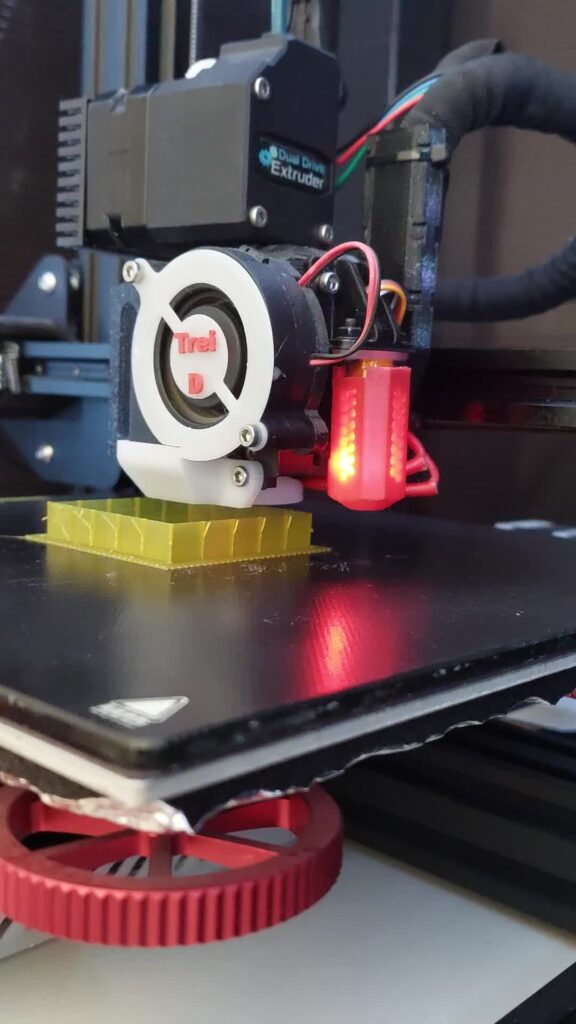
Of the community 3D printer upgrades I fitted to my Ender 3 Pro, the hotend airflow upgrade helped me most. Look for one built for your exact hotend. Mods of this kind replace the hotend fan, the shroud around the heatsink, or both, so more air goes through the heatsink fins and the cold side stays cold. If your long prints start clogging partway through, try it before anything electronic.
Heat creep is also what wore out my patience with the Ender 2 Pro. Faster prints failed, so I printed at about 40 mm/s. At least 45% of my prints on it failed, from clogs and heat creep.
Cooling won’t raise your top speed on its own. On the stock board, my Ender 3 Pro ran:
- 60 mm/s perimeters
- 30 mm/s outer perimeters
- 150 mm/s travel
Quality dropped above 80 mm/s.
Then I upgraded the motherboard and installed Klipper with input shaping. After that it ran 170 mm/s perimeters, 200 mm/s infill and 300 mm/s travel.
On my Biqu B1 I kept the stock board. It moved from stock firmware to Klipper with input shaping, run from a Raspberry Pi Zero 2 W under the bed. That took it from 60 mm/s to 170 mm/s perimeters and from 150 mm/s to 300 mm/s travel. The shaking it showed at higher speeds dropped once I tuned input shaping.
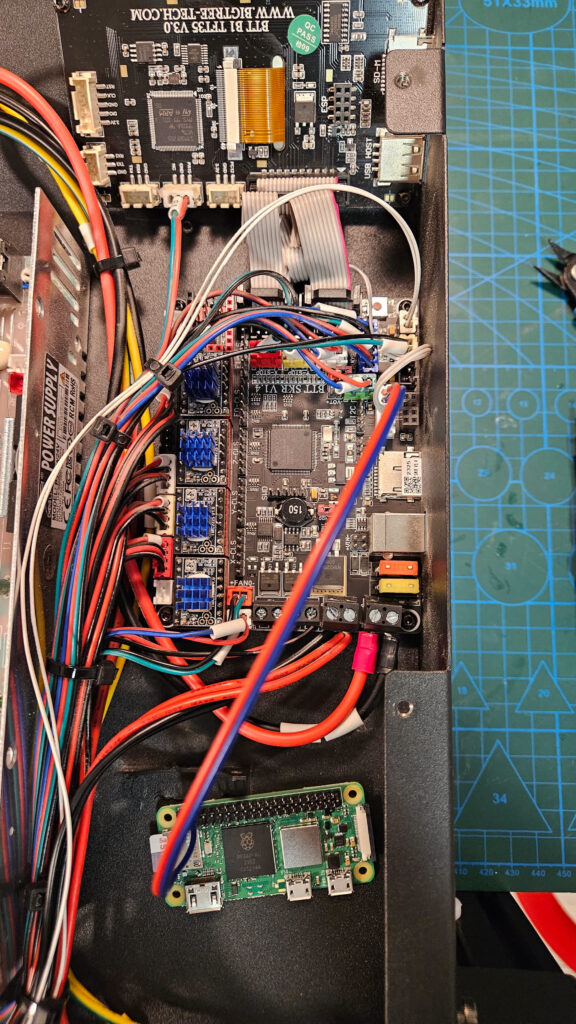
On the Ender 3 Pro, that speed jump came from the board, the firmware and input shaping together. Cooling then has to keep up with the faster layers. If speed is your limit, read how Klipper compares with Marlin and OctoPrint before you buy fans.
Noise and Unattended Prints: Silent Board Upgrade and Filament Runout Sensor
Silent boards get their quiet from Trinamic stepper drivers such as the TMC2208 or TMC2209. Marlin’s Trinamic driver page lists both, and describes their StealthChop mode as “nearly inaudible stepping at low velocities”. Check that Marlin supports the board itself before you buy. A silent board quiets the stepper motors and does nothing for fan noise.
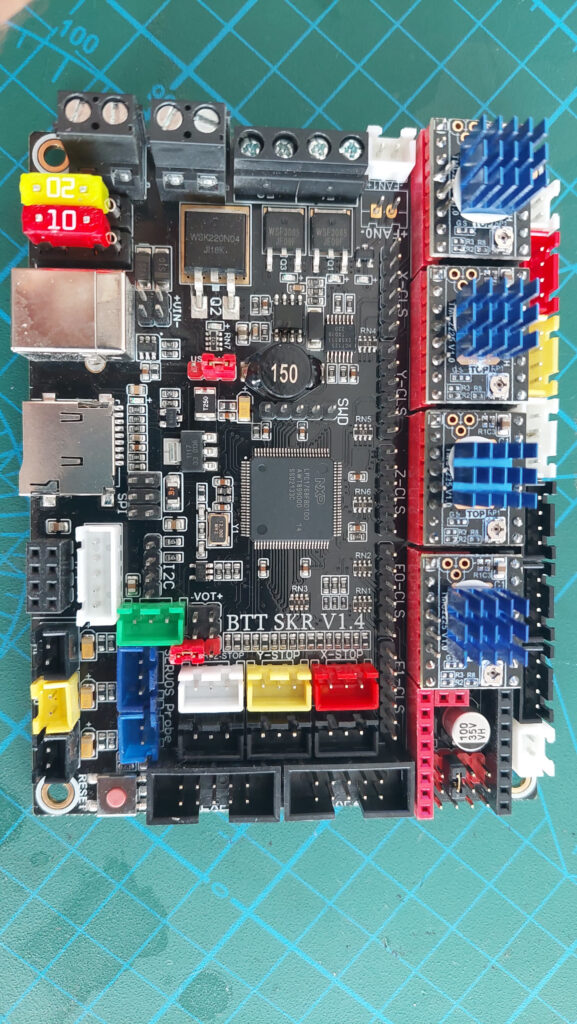
Fan noise was one of the two reasons I returned my Ender 2 Pro, and a silent board would not have touched it.
For unattended prints, the upgrade with the clearest payoff is a filament runout sensor. In Marlin, M412 enables or disables runout detection. When the sensor detects a runout, Marlin runs your configured runout G-code, typically an M600 filament change. The longest print on my Ender 3 Pro was a spine that took almost 30 hours, and starting a job that long on a half-used spool is a gamble a sensor removes.
After fitting a sensor, make sure runout detection is actually enabled. Then pull the filament on a short throwaway print to see the pause happen before you trust it overnight.
Don’t count on power-loss resume to make prints reliable. On my Ender 3 Pro it worked only if the Z axis didn’t drop. A few prints resumed without problems, but most didn’t, because of the layer shift.
Upgrades That Rarely Pay Off, and What to Do Instead
Some 3D printer upgrades are the right part bought for the wrong symptom. Three I’d talk anyone out of first:
- a dual Z kit on a frame that isn’t square
- an all-metal hotend bought to cure PLA stringing
- a silent board bought for fan noise
A faster board on its own belongs on the same list. Flash a new board with the old speed settings and it prints at the old speeds, just more quietly.
What to do instead is unglamorous and cheap. My Ender 3 Pro came without an X-belt tensioner, so I bought a separate one, and I changed the V-wheels. Square the frame, align Z, tension both belts and replace worn wheels. Then re-run your failure log and see which limit is still on it.
When the Upgrade Bill Says Buy a New Printer
Here’s the check I’d run. Add up only the 3D printer upgrades that fix the limits you named, using today’s prices from each maker’s own store, and put a fair value on your evenings. If that total gets near the price of a current printer that already ships with auto leveling, direct drive and quiet drivers, buy the printer.
On one side of my own check sits the roughly $100 my Ender 3 Pro’s upgrades cost. On the other sits the P1S I own. Read its price from the Bambu Lab store on the day you add things up, because sales move it, and count how many $100 rounds of upgrades fit in the gap. Use the Comparison chart to shortlist the printers that include what your list asked for.
My own numbers show both sides. Around $100 in upgrades, plus Klipper, took my Ender 3 Pro to around 80% successful prints. My P1S has done about 1,617 hours at about a 5% failure rate, mostly adhesion from hand grease on the plate. It didn’t need any extra tweaking to print in the first place.
That’s why the P1S is my number one printer. I kept the B1 and the Ender 3 Pro just for fun and to keep my hands on tweaking. If tinkering is the point, upgrade freely. If printing is the point and your log shows more than one or two limits, the bill usually says buy new.
Sources
- Marlin Firmware: Features
- Marlin Firmware: Probe Configuration
- Marlin Firmware: G28 Auto Home
- Marlin Firmware: M420 Bed Leveling State
- Klipper documentation: BL-Touch
- Klipper documentation: Bed Mesh
- UltiMaker Support: How to print with UltiMaker PETG
- UltiMaker: PETG Technical data sheet (v1.00)
- Marlin Firmware: Trinamic drivers
- Marlin Firmware: M412 Filament Runout